Tuesday, February 7, 2017
How to Get Android Nougat Notification Shade on Galaxy S6 S7 and Edge variants
How to Get Android Nougat Notification Shade on Galaxy S6 S7 and Edge variants
Welcome to the guide on how to enable soft keys and get the Nougat notification shade on Samsung Marshmallow ROMs.

If you don’t like Samsung S6 or S7 TouchWiz, Samsung’s custom UI, a lot, then we don’t blame you , in fact, we share the feeling with ya. The cool thing with Android and its myriad of hacks is that customization is endless. A trick shared below will allow you to replace the look of notification shade to make it more like Android Nougat!
With root, it’s possible to get some of Android Nougat looks on your Galaxy S6 and S7, including the Edge variants of them both. But know that this requires root access. If you don’t have root, then you better look to root your device first.

You can also enable and disable the soft keys, or on-screen keys if you prefer. While, if you wish to disable the capacitive keys — which is a good thing to do when you got soft keys up and running — then that’s possible too.
For the guide, please visit here by galaxyYtester, where you will find some basic guidance on how to achieve this.
For More Samsung Galaxy S6, S7 Updates Keep Checking Android Custom ROM Fix
That’s all. We hope this guide serves you well. If there’s anything you’d like to be added/changed on this page, PLZ Use the comment box below to contribute more ideas & Suggestions .
Like this post? PLZ Hit the share buttons below to share this article with your friends on Facebook, Google + and Twitter.
Want the latest Updates Sign up for our newsletters!
PLZ Follow Us On Flipboard 4 More Latest Updates.
Best Regards.™
Available link for download

Monday, January 23, 2017
How to Update T Mobile Galaxy S6 Edge G925T to Android 6 0 1 Marshmallow Sick as Hell ROM
How to Update T Mobile Galaxy S6 Edge G925T to Android 6 0 1 Marshmallow Sick as Hell ROM

Sick as Hell custom ROM is basically a stock ROM with some performance and battery optimisations that makes your device run faster and smoother. Other than that it is a simple TouchWiz ROM and the developer claims that it runs faster than the stock firmware.
Don’t worry we are going to share step by step guide to safely Install Android 6.0.1 Marshmallow Sick as Hell ROM on your T-Mobile Galaxy S6 Edge G925T.
÷ Prerequisites:
•This tutorial is only for installing Android 6.0.1 Sick as Hell ROM on T-Mobile Galaxy S6 Edge G925T. Please do not try on any other Galaxy S6 Edge variants.
•Your phone should have a custom recovery installed in order to install this Sick as Hell ROM on your phone.
•We will be using TWRP Recovery for this tutorial.
•This tutorial will wipe out all your data. Make sure you backup all your data in your phone before proceeding.
•Perform a Dalvik Cache wipe before proceeding from the Recovery Mode.
*Disclaimer:
Android Custom ROM fix ® provide various Firmware Updates and Rooting process along with Custom ROM,Modes,file are all belong to their owners/developers. The autor of this site or the developers are not responsible, if you damage or brick your device.Do it on your own risk and follow the instruction properly.
* Important:
Backup important files stored on your device before proceeding with the steps below, so that in case something goes wrong you’ll have backup of all your important files.

÷ How to Update T-Mobile Galaxy S6 Edge G925T to Android 6.0.1 Marshmallow Sick as Hell ROM:
Step 1 – Download Android 6.0.1 Sick as Hell ROM for Galaxy S6 Edge to your computer.
Step 2 – Connect and mount your Galaxy S6 Edge USB memory to your computer using the USB cable.
Step 3 – Now copy/paste the downloaded Android 6.0.1 ROM zip file to your phone memory / SD card. Make sure the file is in the phone memory / SD card root (not in any folder).
Step 4 – Then turn OFF your phone and disconnect from the USB cable.
Step 5 – Now to get in the Recovery Mode. Switch ON the phone while pressing and holding Volume Up + Home + Power buttons together.
Step 6 – Once you are in TWRP Recovery, perform a full data wipe by tapping on the ‘Wipe’ button. Then swipe on the “Swipe to Factory Reset” option at the bottom.
Step 7 – Now go back to the main menu and then tap on the ‘Install’ button. From the list, choose the ZIP file that you copied to your phone memory in Step 3.
Step 8 – Confirm installation on the next screen by swiping on the “Swipe to Confirm Flash” option. The installation procedure should start now.
Step 9 – Once the installation is completed.
Step 10 – Tap on the “Wipe cache/dalvik” button if you get into any boot loops or other issues.
Step 11 – You can now reboot your phone by selecting the “Reboot System” button.
Your T-Mobile Galaxy S6 Edge will boot now and it might take about 5 minutes to boot on your first time after flashing a new ROM. So, please wait.

For More Samsung Galaxy S6 Edge Updates Keep Checking Android Custom ROM Fix ™®
That’s all. We hope this guide serves you well. If there’s anything you’d like to be added/changed on this page, PLZ Use the comment box below to contribute more ideas & Suggestions .
Like this post? PLZ Hit the share buttons below to share this article with your friends on Facebook, Google + and Twitter.
Want the latest Updates Sign up for our newsletters!
PLZ Follow Us On Flipboard 4 More Latest Updates.
Best Regards.™
Available link for download
Thursday, December 29, 2016
How to Install Android 6 0 1 Marshmallow Jesse Kernel V1 2 ROM on Galaxy S7 Edge SM G935F
How to Install Android 6 0 1 Marshmallow Jesse Kernel V1 2 ROM on Galaxy S7 Edge SM G935F

÷ ROM Features:
Compiled with Linaro 6.1 Toolchain.
Linaro Stable Kernel 15.09 Merged.
Latest Google Kernel-Common Merged.
Latest Linux Stable 3.18.y branch Merged.
MNGS: OC to 2x2.8GHz,UC to 0.5GHz; A53: OC to 1.8GHz
Exynos MP voltage control
Zen-Tune v4.5
Fading LED and LED Controls
Ofast Optimizations.
I/O scheduler improvements
Scheduler improvements
Linaros Power Efficient Workqueue.
DVFS improvements. (automatic reset to prevent cpufreq_(min,max)_limit getting stuck)
Binder Improvements.
CPUidle improvements.
Backport latest crypto algorithm.
Backport latest random driver....
÷ BUG:
NULL.
÷ Prerequisites:
•This tutorial is only for installing Android 6.0.1 Marshmallow Jesse Kernel V1.2 ROM on Samsung Galaxy S7 Edge G935F. Please do not try on any other Galaxy S7 variants.
•Your phone should have a custom recovery installed in order to install this NanoROM ROM on your phone.
•We will be using TWRP Recovery for this tutorial.
•This tutorial will wipe out all your data. Make sure you backup all your data in your phone before proceeding.
•Samsung KIES will NOT detect your phone after installing this ROM because it is a custom firmware.
•Perform a Dalvik Cache wipe before proceeding from the Recovery Mode.
*Disclaimer:
Android Custom ROM fix ® provide various Firmware Updates and Rooting process along with Custom ROM,Modes,file are all belong to their owners/developers. The autor of this site or the developers are not responsible, if you damage or brick your device.Do it on your own risk and follow the instruction properly.
* Important:
Backup important files stored on your device before proceeding with the steps below, so that in case something goes wrong you’ll have backup of all your important files.

You can find out how to apply it right now via XDA.
For MoreVerizon Samsung Galaxy S7 Edge SM- G935F Updates Keep Checking Android custom ROM Fix ™®
That’s all. We hope this guide serves you well. If there’s anything you’d like to be added/changed on this page, PLZ Use the comment box below to contribute more ideas & Suggestions .
Like this post? PLZ Hit the share buttons below to share this article with your friends on Facebook, Google + and Twitter.
Want the latest Updates Sign up for our newsletters!
PLZ Follow Us On Flipboard 4 More Latest Updates.
Best Regards.™
Available link for download
How to Root Galaxy S6 Edge Plus SM G928R4 US Cellular
How to Root Galaxy S6 Edge Plus SM G928R4 US Cellular
Renowned root-star Chainfire has made sure that his CF Auto root tool which is used to root almost all of Samsung’s Android devices, also works with the US Cellular S6 Edge Plus variant.

Rooting with CF-Auto-Root is easy. All you need to do is download the CF Auto Root file for your Samsung device, boot into download mode and connect to PC, then run start CF Auto Root on PC.
÷ Prerequisites:
This Tutorial is only for Rooting Samsung Galaxy S6 Edge Plus SM-G928R4 (US Cellular).please dont try it on other Galaxy S6 edge variants.
*Disclaimer:
Android Custom ROM fix ® provide various Firmware Updates and Rooting process along with Custom ROM,Modes,file are all belong to their owners/developers. The autor of this site or the developers are not responsible, if you damage or brick your device.Do it on your own risk and follow the instruction properly.
* Important:
Backup important files stored on your device before proceeding with the steps below, so that in case something goes wrong you’ll have backup of all your important files.
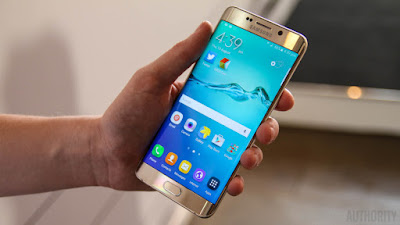
÷ How to Root Galaxy S6 Edge Plus SM-G928R4 (US Cellular).
1- Download CF Auto Root for US Cellular S6 Edge Plus G928R4.
2- Unzip the CF Auto Root .zip file that you downloaded for your device from the link above.
3- You’ll get Odin and CF Auto Root tar file and some more.
4- Run/open Odin3 v3.10.6.exe file from the extracted files on your PC.
5- (If applicable) Enable OEM unlock on your device:
6- Go to Settings » About phone » and tap “Build number” seven times to enable “Developer options”.
7- Go back to main Settings page, scroll to bottom and select “Developer options” from there.
8- Under Developer options, look for “Enable OEM unlock” checkbox/toggle and make sure you Check it or turn it ON.
9- Boot your device into Download mode:
Switch off your device.
10- Press and hold “Home + Power + Volume down” buttons for a few seconds until you see a warning screen.
11- Press Volume Up on the warning screen to accept it and boot into Download mode.
12- Once your device is in download mode, connect it to the PC with a USB cable. The Odin window on PC should detect the device and show an“Added!!” message.
13- Now click on the AP tab on Odin window and select the CF Auto Root .tar file.
14- Click the Start button on Odin and wait for it to finish the process. Once it has finished successfully, you’ll see a pass message on the Odin screen.
15- Your device will automatically reboot when Odin is done flashing, and the CF Auto Root script will be visible on your device, doing its magic.
? You can disconnect the device from PC at this stage.

That’s all. Once booted, your Samsung Galaxy device should be rooted. To verify, download/install any root checker app from the Play Store.
For More Samsung Galaxy S6 Edge Updates Keep Checking Android Custom ROM Fix ™®
That’s all. We hope this guide serves you well. If there’s anything you’d like to be added/changed on this page, PLZ Use the comment box below to contribute more ideas & Suggestions .
Like this post? PLZ Hit the share buttons below to share this article with your friends on Facebook, Google + and Twitter.
Want the latest Updates Sign up for our newsletters!
PLZ Follow Us On Flipboard 4 More Latest Updates.
Best Regards.™
Available link for download
Tuesday, December 20, 2016
Another Galaxy Note 7 leak iris scanner setup S Pen and edge features
Another Galaxy Note 7 leak iris scanner setup S Pen and edge features

Sir Hydarnes is at it again. After leaking us the Galaxy Note 7 wallpapers yesterday, today weve been gifted screenshots from the Note 7s Grace UX interface, most interestingly those relating to the iris scanner and S Pen Air Command menu.
 See also: The Galaxy Note 7 press renders leak and you can pre-order it already
 In the lock screen and security settings you can see there is a new option below Fingerprints called Irises. The disclaimer runs through the limitations of the iris unlock feature which is dishearteningly long. Especially if you were hoping to able to use it while wearing spectacles or contacts, in low light conditions or if you dont want to lift your phone level with your head(?).


But, as we saw in the leaked video a while back, in the right conditions, the Note 7 iris scanner is very fast indeed. To set it up, all you need to do is position the phone 25-30 cms from your face with your eyes in the on-screen circles and let the front-facing scanner register your iris.
Other screenshots show the S Pen Air Command menu, including familiar options like Screen Write, S Note, Smart Select and Action Memo, but theres also a new option: Glance. You can also record sections of the screen and create GIFs on the fly.


Finally, we get a look at the app drawer, which thankfully has the option to arrange your apps alphabetically by default. We also get a look at various new app icons and stock app interfaces like the clock, messages, music player, calendar and dialer. And theres a few generic looks at the Galaxy Note 7 edge features.


Note: the teaser image at the top of this article is simply the screenshot of the iris recognition setup displayed on a Galaxy S7 Edge. It is not the Note 7, so theres no need to point that out, unless you really, really want to.
What do you think of the Note 7 UI? Is the iris scanner something youd use?


Thank you once again Sir Hydarnes!
from Android Authority http://ift.tt/2apgUq6
via IFTTT
Available link for download
Monday, November 28, 2016
I hope the Note 7 still comes with a non edge variant
I hope the Note 7 still comes with a non edge variant

Just a little over a week from now, Samsung will be holding another Unpacked event on August 2nd, unquestionably to unveil this year’s Galaxy Note. Similar to how Microsoft chose to make Windows 10, skipping right over 9, Samsung is rumored skip over the Galaxy Note 6 name and jump ahead to the Galaxy Note 7. This move makes sense as it unifies the names between their Galaxy S7 flagships released earlier in the year, and (coincidentally) would also line up with Apple’s (presumably named) iPhone 7, which will likely show up sometime in September.

from PhoneDog.com - Latest videos, reviews, articles, news and posts http://ift.tt/2a6fjQT
via IFTTT
Available link for download
Monday, October 24, 2016
How to Install Android 6 0 1 Marshmallow N7 Edge Grace Port V1 0 ROM on Galaxy S6 Edge SM G925F
How to Install Android 6 0 1 Marshmallow N7 Edge Grace Port V1 0 ROM on Galaxy S6 Edge SM G925F
According to XDA member Boris2305, Android 6.0.1 Marshmallow N7 Edge Grace Port V1.0 ROM is Available for Samsung Galaxy S6 Edge SM- G925F .

÷ ROM Features:
- 6.0.1 Marshmallow
-Prerooted
-Zipaligned
-Light Debloated
-All N7 Edge apps are ported
-Fast and responsive
-Battery Friendly
-Working S7E People Edge
÷ Prerequisites:
•This tutorial is only for installing Android 6.0.1 NobleROM ROM on Samsung Galaxy S6 Edge SM- G925F. Please do not try on any other Galaxy S6 variants.
•Your phone should be rooted and have ClockworkMod recovery installed from before.
•This tutorial will wipe out all your data. Proceed at your own risk.
•Perform a Dalvik Cache wipe before proceeding from the recovery mode.
•Samsung KIES will NOT detect your phone after installing this ROM because it is a custom firmware.
•Make sure you backup all your data in your phone before proceeding.
*Disclaimer:
Android Custom ROM fix ® provide various Firmware Updates and Rooting process along with Custom ROM,Modes,file are all belong to their owners/developers. The autor of this site or the developers are not responsible, if you damage or brick your device.Do it on your own risk and follow the instruction properly.
* Important:
Backup important files stored on your device before proceeding with the steps below, so that in case something goes wrong you’ll have backup of all your important files.

÷ How to Install Android 6.0.1 Marshmallow N7 Edge Grace Port V1.0 ROM on Galaxy S6 Edge SM- G925F.
Step 1 – Download Android 6.0.1 Marshmallow N7 Edge Grace Port V1.0 ROM to your computer.
Step 2 – Connect and mount your Galaxy S6 Edge USB memory on your computer using the USB cable.
Step 3 – Now copy/paste the downloaded Android 6.0.1 ROM zip file to your SD card. Make sure the file is in the SD card root (not in any folder).
Step 4 – Then turn OFF your phone and disconnect from the USB cable.
Step 5 – Now to get in the Recovery Mode. Switch ON the phone while pressing and holding Volume Up + Home + Power buttons together.
Step 6 – Once you are in ClockworkMod Recovery, select perform a full data wipe by selecting “wipe data/factory reset” . Use the Power button to select everything while in the Recovery Mode.
Step 7 – Then, perform a cache wipe by selecting “wipe cache partition” .
Step 8 – Now this is optional, but it is recommended to perform a wipe of your dalvik cache as well. You will not get into boot loops or any other errors. From CWM recovery, go to ‘advanced’ and then select “wipe dalvik cache”.
Step 9 – Then go back to the main recovery screen and select “install zip from SD card”.
Step 10 – Now select “choose zip from sdcard”. Using your volume keys, navigate to the Android 6.0.1 ROM zip file that you copied to your SD card and select it using the Power button. Confirm the installation on the next screen and the installation procedure should start now.
Step 11 – After the installation completes, go to “+++++Go Back+++++” and reboot the phone by selecting “reboot system now” from the recovery menu.
Your Galaxy S6 Edge will boot now and it might take about 10 minutes to boot on your first time. So, please wait.

That’s it! Your Galaxy S6 Edge should now have Android 6.0.1 Marshmallow N7 Edge Grace Port V1.0 ROM installed on your phone! Go to Settings > About phone to verify.
For More Samsung Galaxy S6 Edge latest updates Keep Checking Android Custom ROM Fix ™®
That’s all. We hope this guide serves you well. If there’s anything you’d like to be added/changed on this page, PLZ Use the comment box below to contribute more ideas & Suggestions .
Like this post? PLZ Hit the share buttons below to share this article with your friends on Facebook, Google + and Twitter.
Want the latest Updates Sign up for our newsletters!
PLZ Follow Us On Flipboard 4 More Latest Updates.
Best Regards.™
Available link for download
Tuesday, October 11, 2016
How to Root Verizon Galaxy S7 Edge SM G935V Easily
How to Root Verizon Galaxy S7 Edge SM G935V Easily

* Warning:
*Disclaimer:

Available link for download
Monday, October 3, 2016
Galaxy Note 7 might have a smaller battery than GS7 edge
Galaxy Note 7 might have a smaller battery than GS7 edge
Latest leak points to a 3,500mAh battery for Samsungs upcoming Note.
Theres been no shortage of Samsung Galaxy Note 7 leakage of late, and the latest details to sneak out of a Korean carrier gives some intriguing info on the phones battery capacity.

A prematurely published spec listing by mobile operator SKT lists the Note 7 with a 3,500mAh battery — an increase over the 3,000mAh cell of the Note 5, but a decrease of 100mAh compared to the Galaxy S7 edge. Other details in the listing include dimensions: 73.9 x 153.5 x 7.9mm — a small increase in thickness compared to both the S7 edge and Note 5 — and a weight of 169 grams — down 2 grams from last years Note.

However small it is, a drop in battery capacity relative to the S7 edge may disappoint enthusiasts hoping for a beefier battery in whats likely to be a 5.7-inch handset. (One possible explanation is that space that would otherwise have been occupied by the battery is instead take up by the S Pen.)
In any case, if the specs listed here are accurate, the Note 7 should still pack a decent bump in battery life compared to the previous model. And theres no telling how Samsung might be saving power elsewhere, for example with more efficient internals or display tech.
MORE: Samsung Galaxy Note 7 preview
Would a tiny difference in battery capacity sway your smartphone purchasing decision? Shout out in the comments!
via: SamMobile

from Android Central - Android Forums, News, Reviews, Help and Android Wallpapers http://ift.tt/2a1Yb0o
via IFTTT
Available link for download
Friday, September 30, 2016
How to Install Android 6 0 1 Marshmallow Sevenpreince v2 2 ROM on Galaxy S7 Edge SM G935F Prerooted
How to Install Android 6 0 1 Marshmallow Sevenpreince v2 2 ROM on Galaxy S7 Edge SM G935F Prerooted

÷ ROM Features:
Android 6.0.1
Prerooted
Deknoxed
Zipaligned
Debloated
Busyboxed
Sound mod v16
New N5 UX apps
init.d tweaks
build.prop tweaks
High performance
Battery friendly
Aroma installer
Busybox in aroma
Adblock in aroma
Rom info in settings/about phone
ROM CONTROL :
-Dynamic status bar
-Lockscreen date and time color
-Reboot recovery in reboot menu...
÷ Prerequisites:
•This tutorial is only for installing Android 6.0.1 Marshmallow Sevenpreince v2.2 ROM is on Samsung Galaxy S7 Edge SM- G935F.. Please do not try on any other Galaxy S7 variants.
•Your phone should be rooted and haveClockworkMod recovery installed from before.
•This tutorial will wipe out all your data.Proceed at your own risk.Perform a Dalvik Cache wipe before proceeding from the recovery mode.
•Make sure you backup all your data in your phone before proceeding.
•Samsung KIES will NOT detect your phone after installing this ROM because it is a custom firmware.
*Disclaimer:
Android Custom ROM fix ® provide various Firmware Updates and Rooting process along with Custom ROM,Modes,file are all belong to their owners/developers. The autor of this site or the developers are not responsible, if you damage or brick your device.Do it on your own risk and follow the instruction properly.
* Important:
Backup important files stored on your device before proceeding with the steps below, so that in case something goes wrong you’ll have backup of all your important files.

ROM Download & Installation Instructions via XDA
For More Samsung Galaxy S7 updates Keep Checking Android Custom ROM Fix™®
Like this post? PLZ Hit the share buttons below to share this article with your friends on Facebook, Google + and Twitter.
PLZ Follow Us On Flipboard 4 More Latest Updates.
PLZ Use the comment box below to contribute more ideas & Suggestions .
Best Regards.
Available link for download
Thursday, September 15, 2016
Help! Briefing Covers Home AT T S7 Edge
Help! Briefing Covers Home AT T S7 Edge
I have imgur links for the screenshots but cant post them because this is my first post.
from xda-developers http://ift.tt/2akw8gQ
via IFTTT
Available link for download
Sunday, September 11, 2016
How to Root AT T Galaxy S7 SM G930A Galaxy S7 Edge SM G935A
How to Root AT T Galaxy S7 SM G930A Galaxy S7 Edge SM G935A

* Warning:
This is engboot, meaning its not made to be used on day to day basis you may run into some issues. Hopefully we can fix them as we go!
Also do not update supersu through playstore untill we are for sure that it wont mess anything up.
*Disclaimer:
Android Custom ROM fix ® provide various Firmware Updates and Rooting process along with Custom ROM,Modes,file are all belong to their owners/developers. The autor of this site or the developers are not responsible, if you damage or brick your device.Do it on your own risk and follow the instruction properly.
* Important:
Backup important files stored on your device before proceeding with the steps below, so that in case something goes wrong you’ll have backup of all your important files.

You can find out how to Root your AT&T Samsung Galaxy S7 SM- G930A & Galaxy S7 Edge SM-G935A via XDA.
For MoreVerizon Samsung Galaxy S7 Updates Keep Checking Android custom ROM Fix ™®
That’s all. We hope this guide serves you well. If there’s anything you’d like to be added/changed on this page, PLZ Use the comment box below to contribute more ideas & Suggestions .
Like this post? PLZ Hit the share buttons below to share this article with your friends on Facebook, Google + and Twitter.
Want the latest Updates Sign up for our newsletters!
PLZ Follow Us On Flipboard 4 More Latest Updates.
Best Regards.™
Available link for download
Friday, August 19, 2016
How To Update Galaxy S7 edge SM G935F to Marshmallow 6 0 1 Latest Firmware XXU1APF2 New and Enhanced Features
How To Update Galaxy S7 edge SM G935F to Marshmallow 6 0 1 Latest Firmware XXU1APF2 New and Enhanced Features
Today Samsung Currently Pushing XXU1APF2 Update to the Galaxy S7 edge - SM-G935F on its network Germany (O2) that includes a security update, as well as now displaying which security patch your phone has and bug fixes. It is recommended you keep your device updated to the latest software so that you don’t experience any flaws or drops in reliability.
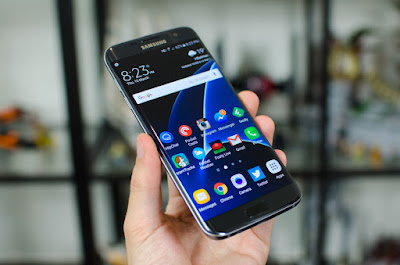
XXU1APF2 is based on the latest Marshmallow 6.0.1 for the Galaxy S7 edge - SM-G935F
Follow our guide below to download the update and install it yourself.
The Update brings the following changes:
•The security of your device has been improved.
•Device stability improvements, bug fixes.
•New and / or enhanced features.
•Further improvements to performance.
| Model | SM-G935F |
| Model name | Galaxy S7 edge |
| Country | Germany (O2) |
| Version | Android 6.0.1 |
| Changelist | 8252943 |
| Build date | Wed, 01 Jun 2016 09:18:57 +0000 |
| Security Patch Level | 2016-06-01 |
| Product code | VIA |
| PDA | G935FXXU1APF2 |
| CSC | G935FTEF1APC2 |
*Disclaimer:
Custom ROM fix ® provide various Firmware Updates and Rooting process along with Custom ROM,Modes,file are all belong to their owners/developers. The autor of this site or the developers are not responsible, if you damage or brick your device.Do it on your own risk and follow the instruction properly.
* Important:
Backup important files stored on your device before proceeding with the steps below, so that in case something goes wrong you’ll have backup of all your important files.
÷ How To : Update Galaxy S7 edge - SM-G935F to Marshmallow 6.0.1 Latest Firmware XXU1APF2
[New and Enhanced Features.]
Download Samsung Galaxy S7 edge - SM-G935F XXU1APF2 Firmware .
1- Extract (unzip) the firmware file
2- Download Odin v3.11.1
3- Extract Odin ZIP file
4- Open Odin v.3.11.1
5- Reboot Phone in Download Mode (press and hold Home + Power + Volume Down buttons)
6- Connect phone and wait until you get a blue sign in Odin
7- Add the firmware file to AP / PDA
Make sure re-partition is NOT ticked
8- Click the start button, sit back and wait few minutes.

That’s it! Your Galaxy S7 edge - SM-G935F should now have Marshmallow 6.0.1 on your phone! Go to Settings > About phone to verify.
Like this post? PLZ Hit the share buttons below to share this article with your friends on Facebook, Google + and Twitter.
PLZ Follow Us On Flipboard 4 More Galaxy S7 edge - SM-G935F Latest Updates.
PLZ Use the comment box below to contribute more ideas & Suggestions .
Best Regards.
Available link for download