Tuesday, February 14, 2017
Android Studio 2 2 Preview New UI Designer Constraint Layout
Android Studio 2 2 Preview New UI Designer Constraint Layout

Android Studio 2.2 Preview includes a portfolio of new features along the spectrum of developments, ranging from designing user interfaces to building and debugging your app in new ways. This preview includes the following new categories of features:
Design
- Layout Editor: A new user interface designer that helps you visually design the layouts in your app. Features like blueprint mode and the new properties panel allow you to quickly edit layouts and widgets faster.
- Constraint Layout: A new powerful and flexible Android layout that allows you to express complex UIs without nesting multiple layouts.
- Layout Inspector: Debug a snapshot of your app layout running on the Android Emulator or device. Inspect the view hierarchy and corresponding attributes.
Develop
- Firebase Plugin: Explore and integrate the suite of services offered by Firebase inside of Android Studio. Adding services like Analytics, Authentication, Notifications, and AdMob are just a few clicks away.
- Enhanced Code Analysis: Android Studio checks the quality of your Android app code. In addition to 260 Android lint and code inspections, this release includes new code quality checks for Java 8 language usage and a new inspection infrastructure for more cross-file analysis.
- Samples Browser: Referencing Android sample code is now even easier. Within the code editor window, find occurrences of your app code snippets in Google Android sample code to help jump start your app development.
- Improved C++ Support: Android Studio 2.2 improves C++ development with the ability to edit, build, and debug pre-existing Android projects that use ndk-build or CMake rather than Gradle. Additionally, the existing lldb C++ debugger is now even better with project type auto-detection and a Java language aware C++ mode that lets you use a single debugger process to inspect both Java language and C++ runtimes.
- IntelliJ 2016.1: Android Studio 2.2 includes all the latest updates from the underlying JetBrains product platforms IntelliJ.
Build
- Jack Compiler Improvements: For those using the new Jack compiler, Android Studio 2.2 adds support for annotation processing, as well as incremental builds for reduced build times.
- Merged Manifest Viewer: Diagnose how your AndroidManifest.xml merges with your app dependences across your project build variants.
Test
- Espresso Test Recorder: Record Espresso UI tests simply by using your app as a normal user. As you click through your app UI, reusable and editable test code is then generated for you. You can run the generated tests locally, in your Continuous Integration environment, or in Firebase Test lab.
- APK Analyzer: Drill into your APK to help you reduce your APK size, debug 64K method limit issues, view contents of Dex files and more.
Deeper Dive into the New Features
Design- Layout Editor: Android Studio 2.2 features a new user interface designer. There are many enhancements but some of the highlights include:
- Drag-and-drop widgets from the palette to the design surface or the component tree view of your app.
- Design surface has a blueprint mode to inspect the spacing and arrangement of your layout.
- Properties panel now shows a curated set of properties for quick widget edits with a full sheet of advanced properties one click away.
- UI builder can edit menu and system preference files.
 |
| The new Layout Editor in Android Studio 2.2 Preview |
 |
| Edit Menus in the new Layout Editor |
- Constraint Layout: This new layout is a flexible layout manager for your app that allows you to create dynamic user interfaces without nesting multiple layouts. It is distributed as a support library that is tightly coupled with Android Studio and backwards compatible to API Level 9.
To help you get started, the built-in templates in the New Project Wizard in Android Studio 2.2 Preview now generate a Constraint Layout. Alternately, you can right click on any layout in the new Layout Editor and select the Convert to ConstraintLayout option.
This is an early preview of the UI designer and Constraint Layout, and we will rapidly add enchantments in upcoming releases. Learn more on the Android Studio tools site.
 |
Constraint Layout |
 |
Start Layout Inspector |
- Layout Inspector: For new and existing layouts, many times you may want to debug your app UI to determine if your layout is rendering as expected. With the new Layout Inspector, you can drill into the view hierarchy of your app and analyze the attributes of each component of UI on the screen.
 |
| Layout Inspector |
- Firebase Plugin: Firebase is the new suite of developers services that can help you develop high-quality apps, grow your user base, and earn more money. Inside of Android Studio, you can add Firebase to a new or existing Android app with the new Assistant window. To access the Firebase features click on the Tools menu and then select Firebase. You will want to first setup the brand new Firebase Analytics as the foundation as you explore other Firebase services like Firebase Cloud Messaging or Firease Crash Reporting to add your application. Learn more about the Firebase integration inside Android Studio here.
 |
Firebase Plugin for Android Studio |
- Code Sample Browser: In addition to importing Android Samples, the Code Sample Browser is a menu option inside Android Studio 2.2 Preview that allows you to find high-quality, Google-provided Android code samples based on the currently highlighted symbol in your project. To use the feature, highlight a Variables, Types and Methods in your code then Right Click to show a context menu for Find Sample Code. The results are displayed in a bottom output box.
 |
| Code Sample Browser |
- CMake and NDK-Build: For those of you using the Android NDK, Android Studio now supports building CMake and NDK-Build Android app projects by pointing Gradle at your existing build files. Once you’ve added your cmake or ndk-build project to Gradle, Android Studio will automatically open your relevant Android code files for editing and debugging in Studio.
For CMake users, just add the path to your CMList.txt file in the
externalNativeBuild section of your Gradle file: |
| CMake Build in Android Studio |
For NDK-Build Users, just add the path to your *.mk file in the section of your Gradle file:
 |
| NDK-Build in Android Studio |
- Improved Jack Tools: The new Jack Toolchain compiles your Java language source into Android dex bytecode. The Jack compiler allows some Java 8 language features, like lambdas, to be used on all versions of Android. This release adds incremental build and full support for annotation processing, so you can explore using Java 8 language features in your existing projects.
 |
Enable Jack Incremental Compile Option |
 |
| Enable Jack Annotation Processing |
- Merged Manifest Viewer: Figuring out how your AndroidManifest merges with your project dependencies based on build types, flavors and variants is now easier with Android Studio. Navigate to your AndroidManifest.xml and click on the new Merged Manifest bottom tab. Explore how each node of your AndroidManifest resolves with various project dependencies.
 |
| Merged Manifest Viewer |
- Espresso Test Recorder: Sometimes writing UI tests can be tedious. With the Record Espresso UI tests feature, creating tests is now as easy as just using your app. Android Studio will capture all your UI interactions and convert them into a fully reusable Espresso Test that you can run locally or even on Firebase Test lab. To use the recorder, go to the Run menu and select Record Espresso Test.
 |
| Espresso Test Recorder |
- APK Analyzer: The new APK Analyzer helps you understand the contents and the sizes of different components in your APK. You can also use it to avoid 64K referenced method limit issues with your Dex files, diagnose ProGuard configuration issues, view merged AndroidManifest.xml file, and inspect the compiled resources file (resources.arsc). This can help you reduce your APK size and ensure your APK contains exactly the things you expect.
 |
| APK Analyzer |
- Java-aware C++ Debugger: When debugging C++ code on targets running N and above, you can now use a single, Java language aware lldb instance. This debugger continues to support great lldb features like fast steps and memory watchpoints while also allowing you to stop on Java language breakpoints and view your Java language memory contents.
- Auto Debugger Selection: Android Studio apps can now use debugger type “Auto.” This will automatically enable the appropriate debugger -- the Java language aware C++ debugger if enabled and otherwise the hybrid debugger for C++ projects. Projects exclusively using the Java language will continue to use the Java language debugger.
 |
| Enable Auto Debugger for C++ |
Whats Next
DownloadIf you are using a previous version of Android Studio, you can check for updates on the Canary channel from the navigation menu (Help ? Check for Update [Windows/Linux] , Android Studio ? Check for Updates [OS X]). This update will download a new version, and not patch your existing copy of Android Studio. You can also download Android Studio 2.2 Preview from canary release site.
For the Android Studio 2.2 Preview, we recommend you run a stable version alongside the new canary. Check out the tools site on how to run two versions at the same time.
We appreciate any feedback on things you like, issues or features you would like to see. Connect with us -- the Android Studio development team -- on our Google+ page or on Twitter.
Available link for download

Friday, February 3, 2017
Google Camera gets twist gesture in Nougat Dev Preview 5
Google Camera gets twist gesture in Nougat Dev Preview 5

Motorola fans are probably already familiar with this one. The Moto X and its ilk arrived with the ability to launch the default camera app using a rapid double-twist gesture thats almost exactly like what you would do if your watch gets stuck too high up on your wrist. If youre inside the camera, then performing this motion would swap between front and rear camera with a satisfying haptic rush. Now Google Camera v4.1 on the fifth Nougat developers preview is getting a similar feature.
Although you cant launch the app cold with this gesture, you are able to swap between cameras. It can be a little counter-intuitive at first, but once youve done it a few times, using this method rather than tapping the icon on the screen becomes second nature.
 See also: Google Camera app rumored to get Google Goggles functionality
This is only one of the most prominent features to arrive for Google Camera with Nougat. The app is also getting a slew of user interface adjustments that include more intuitive options and cleaner animations. Were also getting the ability to pause video recordings, a feature that has been a long time coming.
Check out our coverage on the Nougat Dev Preview to get yourself on the cutting edge of the Android operating system, and click the button below to snag the latest version of the Google Camera from the Google Play Store. Give the twisting gesture a spin, then let us know in the comments if its something youll be using on the regular.
from Android Authority http://ift.tt/29VlFaC
via IFTTT
Available link for download
Monday, January 30, 2017
How to Root Nexus 6 Running Android N NPD90G Developer Preview 5
How to Root Nexus 6 Running Android N NPD90G Developer Preview 5

The latest Android N Developer Preview 5 NPD90G is the next upcoming major firmware release by Google. It brings some new features like multi-window mode, an enhanced doze mode, a revamped Settings screen and a quick toggle in the notifications panel. Other changes include improved notifications, improved multitasking and app switching, dark mode etc...
÷ Prerequisites:
•This root method is only for Android N (NPD90G) installed on Nexus 6 and I am not sure if it will work on the other variants of the Nexus 6 on other carriers.
•Your Nexus 6 bootloader should be unlocked.
Nexus 6 should be on Android N NPD90G software version.
•Make a Nandroid backup of your previous phone set up before proceeding – for just in case anything goes wrong.
*Disclaimer:
Android Custom ROM fix ® provide various Firmware Updates and Rooting process along with Custom ROM,Modes,file are all belong to their owners/developers. The autor of this site or the developers are not responsible, if you damage or brick your device.Do it on your own risk and follow the instruction properly.
* Important:
Backup important files stored on your device before proceeding with the steps below, so that in case something goes wrong you’ll have backup of all your important files.

÷ How to Root Nexus 6 Running Android N (NPD90G) Developer Preview 5.
Step 1 – Download Android SDK from the Android Developers website and install. Also set it up with downloading platform-tools and USB drivers package in SDK.
Step 2 – Enable USB Debugging mode in your Nexus 6.
Step 3 – Download Fastboot from the following links depending on your OS and extract it in android-sdk-windowsplatform-tools directory. Create directory if not already there.
Windows: Download here
Mac: Download here.
Linux: Download here.
NOTE: Skip Steps 1, 2, 3 if you already have them.
Step 4 – Download SuperSU v2.71 for Nexus 6 on your PC, if you haven’t already.
Step 5 – Connect and mount your Nexus 6 USB memory on your computer using the USB cable.
Step 6 – Now copy/paste the BETA-SuperSU-v2.71-20160331103524.zip file to your SD card. Make sure the file is in the SD card / internal storage root (not in any folder).
Step 7 – Then turn OFF your phone.
Step 8 – twrp-3.0.0-0-shamu.img and save it to your android-sdk-windowsplatform-tools directory on your computer.
Step 9 – Now go into Fastboot/Bootloader Mode on Nexus 6. How? Press Volume Down + Power keys for a few seconds till you see some text on the screen. This is Bootloader Mode.
Step 10 – Navigate to android-sdk-windowsplatform-tools directory and open Command Prompt (Shift + Right-click > Open Command Prompt).
Step 11 – Type in the following command and press Enter.
fastboot flash recovery twrp-3.0.0-0-shamu.img
Step 12 – Once completed, choose RECOVERY from the Fastboot menu and enter Recovery Mode.
Step 13 – In ClockworkMod recovery, scroll down to “flash zip from SD card” and press the power button to select it.
Step 14 – Press the Power button again and select “choose zip from sdcard”.
Step 15 – Now using your volume keys, navigate to BETA-SuperSU-v2.71-20160331103524.zip and select it using the Power button. Confirm the installation on the next screen and the installation procedure should start now.
Step 16 – After the installation completes, go to “+++++Go Back” and reboot the phone by selecting “reboot system now” from the Recovery menu. The phone will boot now and it might take about 5 minutes to boot on your first time. So, please wait.

That’s it! Your Nexus 6 is now rooted on Android N Developer Preview 5 firmware on your phone! Check for the SuperSU app in your apps list to verify.
For More Nexus 6 latest updates Keep Checking Android Custom ROM Fix™®
That’s all. We hope this guide serves you well. If there’s anything you’d like to be added/changed on this page, PLZ Use the comment box below to contribute more ideas & Suggestions .
Like this post? PLZ Hit the share buttons below to share this article with your friends on Facebook, Google + and Twitter.
Want the latest Updates Sign up for our newsletters!
PLZ Follow Us On Flipboard 4 More Latest Updates.
Best Regards.™
Available link for download
Sunday, January 22, 2017
Android Wear 2 0 Developer Preview
Android Wear 2 0 Developer Preview
Posted by David Singleton, VP of Engineering

Today at Google I/O, we announced the most significant Android Wear update since its launch two years ago: Android Wear 2.0. Based on what we’ve learned from users and developers, were evolving the platform to improve key experiences on the watch, including watch faces, messaging, and fitness.
Android Wear 2.0 will be available to users this fall. We’re making a Developer Preview available today and plan to release additional updates throughout the summer, so please send us your feedback early and often. Also, please keep in mind that this preview is a work in progress, and is not yet intended for daily use.
What’s new?
- Standalone apps: Your Android Wear app can now access the internet directly over Bluetooth, Wi-Fi, or cellular, without relying on the Data Layer APIs. This means your app can continue to offer full functionality even if the paired phone is far away or turned off. Removing the requirement to use the Data Layer APIs also enables your app to offer the same functionality regardless of whether the watch is paired with an Android or iPhone. In addition, your app can receive push messages via Google Cloud Messaging and access
AccountManagerdirectly on the watch. - New system UI: We’ve made a number of UI changes that will help users interact with your app more easily. A new notification design and app launcher make it easier to take action on notifications and launch your app, and a new watch face picker makes switching watch faces fast and fun. The system UI also adopts a dark color palette and makes better use of round displays. We recommend you test your existing Android Wear app and notifications with the new UI.
- Material design for wearables: The new Material Design for Wearables guide will help you make your app’s interface more consistent, intuitive, and beautiful. The new navigation drawer and action drawer components in the Wearable support library make it easy to align your app with the system UI’s new vertical layout. We’ve also provided guidance on how to adopt the dark color palette.
- Complications API: Complications are bite-sized pieces of information displayed to users directly on the watch face. Android Wear now has a system-wide framework to enable any app to show data on any watch face that implements the API. As an app developer, you can choose to publish your data to a wide variety of watch faces and make it easier for users to launch your app from the watch face. As a watch face developer, you can rely on data from a rich ecosystem of Wear apps without having to worry about sourcing it yourself.
- Input methods: Keyboard and handwriting input methods open up new ways to accept text from users on the watch. You can now use these new input methods in your app via
RemoteInputandEditText, and notifications that already useRemoteInputfor voice replies will automatically support the new input methods. We’ve ported over the full Android input method framework to the watch, so you can even create your own custom input methods if you wish. - New
MessagingStylenotification: Android Wear 2.0 includes a new notification template with a layout optimized for quick and responsive messaging. This template is also available on phones and tablets using Android N, so creating a great cross-device messaging experience is a breeze. - Google Fit platform: Improvements to the Google Fit platform make it easier for your app to use fitness data and detect activity. You can register a
PendingIntentto be notified of changes in the fitness data store, so you don’t have to keep querying for changes to weight, nutrition, and other data types. It’s also easier for your app to get a consistent daily step count on Android Wear -- withHistoryApi.readDailyTotal(), a step recording subscription is no longer required. Finally, apps will soon be able to detect (with consent) when the user starts walking, running, or biking. - Support for Android N: Your Android Wear app can now take advantage of the latest Android N features such as Data Saver and Java 8 Lambda support. Also, let’s not forget the new emojis!
Get started and give us feedback!
The Android Wear 2.0 Developer Preview includes an updated SDK with tools, and system images for testing on the official Android emulator, the LG Watch Urbane 2nd Edition LTE, and the Huawei Watch.To get started, follow these steps:
- Take a video tour of the Android Wear 2.0 developer preview
- Update to Android Studio v2.1.1 or later
- Visit the Android Wear 2.0 Developer Preview site for downloads and documentation
- Get the emulator system images through the SDK Manager or download the device system images
- Test your app with your supported device or emulator
- Give us feedback
Available link for download
Saturday, January 21, 2017
Android Wear 2 0 Developer Preview 2
Android Wear 2 0 Developer Preview 2
Posted by Hoi Lam, Android Wear Developer Advocate
At Google I/O 2016, we launched the Android Wear 2.0 Developer Preview, which gives developers early access to the next major release of Android Wear. Since I/O, feedback from the developer community has helped us identify bugs and shape our product direction. Thank you!
Today, we are releasing the second developer preview with new functionalities and bug fixes. Prior to the consumer release, we plan to release additional updates, so please send us your feedback early and often. Please keep in mind that this preview is a work in progress, and is not yet intended for daily use.
What’s new?
- Platform API 24 - We have incremented the Android Platform API version number to 24 to match Nougat. You can now update your Android Wear 2.0 Preview project’s
compileSdkVersionto API 24, and we recommend that you also updatetargetSdkVersionto API 24. - Wearable Drawers Enhancements - We launched the wearable drawers as part of the Android Wear 2.0 Preview 1, along with UX guidelines on how to best integrate the navigation drawer and action drawer in your Android Wear app. In Preview 2, we have added additional support for wearable drawer peeking, to make it easier for users to access these drawers as they scroll. Other UI improvements include automatic peek view and navigation drawer closure and showing the first action in
WearableActionDrawer’s peek view. For developers that want to make custom wearable drawers, we’ve addedpeek_viewanddrawer_contentattributes toWearableDrawerView. And finally, navigation drawer contents can now be updated by callingnotifyDataSetChanged. - Wrist Gestures: Since last year, users have been able to scroll through the notification stream via wrist gestures. We have now opened this system to developers to use within their applications. This helps improve single hand usage, for when your users need their other hand to hold onto their shopping or their kids. See the code sample below to get started with gestures in your app:
public class MainActivity extends Activity { ... @Override /* KeyEvent.Callback */ public boolean onKeyDown(int keyCode, KeyEvent event) { switch (keyCode) { case KeyEvent.KEYCODE_NAVIGATE_NEXT: Log.d(TAG, "Next"); break; case KeyEvent.KEYCODE_NAVIGATE_PREVIOUS: Log.d(TAG, "Previous"); break; } // If you did not handle, then let it be handled by the next possible element as deemed by // Activity. return super.onKeyDown(keyCode, event); } } Get started and give us feedback!
The Android Wear 2.0 Developer Preview includes an updated SDK with tools and system images for testing on the official Android emulator, the LG Watch Urbane 2nd Edition LTE, and the Huawei Watch.
To get started, follow these steps:
- Take a video tour of the Android Wear 2.0 developer preview
- Update to Android Studio v2.1.1 or later
- Visit the Android Wear 2.0 Developer Preview site for downloads and documentation
- Get the emulator system images through the SDK Manager or download the device system images from the developer preview downloads page
- Test your app with your supported device or emulator
- Give us feedback
We will update this developer preview over the next few months based on your feedback. The sooner we hear from you, the more we can include in the final release, so dont be shy!
Available link for download
Monday, January 16, 2017
Android Studio 2 0 Preview
Android Studio 2 0 Preview
Posted by, Jamal Eason, Product Manager, Android
One the most requested features we receive is to make app builds and deployment faster in Android Studio. Today at the Android Developer Summit, we’re announcing a preview of Android Studio 2.0 featuring Instant Run that will dramatically improve your development workflow. With Android Studio 2.0, we are also including a preview of a new GPU Profiler.
All these updates are available now in the canary release channel, so we can get your feedback. Since this initial release is a preview, you may want to download and run an additional copy of Android Studio in parallel with your current version.
New Features in Android Studio 2.0
Instant Run: Faster Build & Deploy
Android Studio’s instant run feature allows you to to quickly see your changes running on your device or emulator.
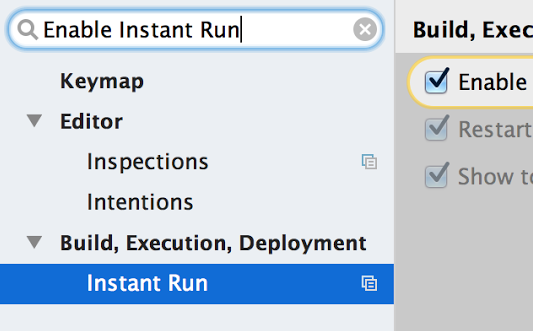
Getting started is easy. If you create a new project with Android Studio 2.0 then your projects are already setup. If you have a pre-existing app open Settings/Preferences, the go to Build, Execution, Deployment ? Instant Run. Click on Enable Instant Run... This will ensure you have the correct gradle plugin for your project to work with Instant Run.

Select Run as normal and Android Studio will perform normal compilation, packaging and install steps and run your app on your device or emulator. After you make edits to your source code or resources, pressing Run again will deploy your changes directly into the running app.

For a more detailed guide setup and try Instant Run, click here.
GPU Profiler
Profiling your OpenGL ES Android code is now even easier with the GPU Profiler in Android Studio. The tool is in early preview, but is very powerful and not only shows details about the GL State and Commands, you can record entire sessions and walk through the GL Framebuffer and Textures as your app is running OpenGL ES Code.

To get started, first download the GPU Debugging Tools package from the Android Studio SDK Manager. Click here for more details about the GPU Profiler tool and how to set up your Android app project for profiling.
Whats Next
This is just a taste of some of the bigger updates in this latest release of Android Studio. Well be going through the full release in more detail at the Android Developer Summit (livestreamed on Monday and Tuesday). Over the next few weeks, well be showing how to take advantage of even more features in Android Studio 2.0, so be sure to check back in.
If youre interested in more Android deep technical content, we will be streaming over 16 hours of content from the inaugural Android Developer Summit over the next two days, and together with Codelabs, all of this content will be available online after the Summit concludes.
Android Studio 2.0 is available today on the Android Studio canary channel. Let us know what you think of these new features by connecting with the Android Studio development team on Google+.
Available link for download
Tuesday, December 27, 2016
Android Studio 2 1 supports Android N Developer Preview
Android Studio 2 1 supports Android N Developer Preview
Posted by Jamal Eason, Product Manager, Android

With the launch Android N Developer Preview, we wanted to give you an easy and comprehensive way to build, test and validate your apps on the latest release with Android Studio. Built on the speed and feature enhancements of Android Studio 2.0, the stable release of Android Studio 2.1 includes updates to the IDE wizards, build system and Android Emulator so that you can try out new features and APIs of the developer preview including the new Jack compiler and Java 8 language support. In addition to support for the N Developer Preview, Android Studio 2.1 also includes performance improvements to Instant Run which leads to faster edit and deploy build speeds. If you are developing and validating your app with the N Developer Preview or want faster Instant Run speeds, you should download or update on the stable release channel to Android Studio 2.1.
Android Studio 2.1 includes the following new features:
- N Developer Preview Support: Android Studio 2.1 is the best IDE to test and validate your app with the N Developer Preview. Get the latest versions of the preview SDK, experiment with the new Java 8 support, and gain access to the only official Android Emulator able to run N Developer Preview Emulator System Images to help in your testing.
- Instant Run: For those of you who enjoyed the fast edit, build and deploy cycle with Android Studio 2.0, Instant Run now can now update incremental changes to your app code significantly faster.
Deeper Dive into the New Features
N Developer Preview
On top of new features and APIs of the N Developer Preview, Android Studio 2.1 release includes support for the new Jack compiler and support for Java 8. With the Jack compiler, lambdas, method references, compile-time type annotations, intersection types and type inference are available on all versions of the Android platform. Default and static methods and repeatable annotations are available on Android N and higher. To use Java 8 language features when developing with the N Developer Preview, you need to use the Jack compiler. The New Project Wizard [File? New? Project] generates the correct configurations for projects targeting the N.
Getting started with development is as easy generating a new project or updating a few settings in your existing project. Once you are ready to test, you can create a fresh Android Virtual Device (AVD) and run your app on the N Developer Preview using the new Android Emulator.

Instant Run & General Build Performance Improvements
Instant Run and general build speed are now faster with two new features: incremental Java compilation and in-process dex.
In previous versions of Android Studio, a single line of Java code change will cause all the Java sources in the module to be recompiled. Now in Android Studio 2.1, incremental Java compilation is enabled by default to reduce compilation time by compiling only what is needed.
We are also speeding up build times by using in-process dex, which converts class files to dex files within the Gradle daemon process. This avoids the costly processing operation of creating separate dex processes. To use this feature, you will need to increase the amount of memory available to the Gradle daemon to at least 2GB (1 GB is the default). This feature will help speed up both incremental and full builds.
We’d appreciate your feedback as we continue to improve Instant Run and general build performance. We are going to keep working on making build times even faster in coming releases. Click here to learn even more about the build changes.
Whats Next
Update
If you are using a previous version of Android Studio, you can check for updates on the Stable channel from the navigation menu (Help ? Check for Update [Windows/Linux] , Android Studio ? Check for Updates [OS X]). If you need a new copy of Android Studio, you can download it here.
Test and Validate Apps with N Developer Preview
After you update to or download Android Studio 2.1 and you want to test and develop your apps with the N Developer Preview, create a fresh Android Virtual Device (AVD) for the new Android emulator, and check out these additional setup instructions.
We appreciate any feedback on things you like, issues or features you would like to see. Connect with us -- the Android Studio development team -- on our Google+ page or on Twitter.
Available link for download
Tuesday, November 22, 2016
How to Update Nexus 5X to Official Android N NPD90G Developer Preview 5
How to Update Nexus 5X to Official Android N NPD90G Developer Preview 5
Android N Developer Preview 5 is now available for the Nexus 5X, Nexus 6 and Nexus 9 phones. These are the major changes in Preview 2 release of Android N, as per Google:

As we close in on the public rollout of Android 7.0 Nougat to devices later this summer, today we’re releasing Developer Preview 5, the last milestone of this preview series. Last month’s Developer Preview included the final APIs for Nougat; this preview gives developers the near-final system updates for all of the supported preview devices, helping you get your app ready for consumers.
÷ Prerequisites:
•This tutorial is only for LG Nexus 5X and we are not sure if it will work on the other variants of the Nexus 5X on other carriers.
•Your phone can be on any previous Android version or even on a custom ROM. It doesn’t matter at all. This tutorial will still work for installing Android N Developer Preview 5.
*Disclaimer:
Android Custom ROM fix ® provide various Firmware Updates and Rooting process along with Custom ROM,Modes,file are all belong to their owners/developers. The autor of this site or the developers are not responsible, if you damage or brick your device.Do it on your own risk and follow the instruction properly.
* Important:
Backup important files stored on your device before proceeding with the steps below, so that in case something goes wrong you’ll have backup of all your important files.
÷ How to Update Nexus 5X to Official Android N NPD90G Developer Preview 5 :
Step 1 – Download Android N Factory Image (bullhead-npd90g-factory-7a0ca1bc.tgz) for Nexus 5X on your PC, if you haven’t already.
Step 2 – Connect your Nexus 5X to your computer using the USB cable.
Step 3 – Please make sure Fastboot is configured and properly installed on your computer.
Step 4 – Turn OFF your phone.
Step 5 – Get into the Fastboot/Bootloader Mode on your phone. Turn ON the phone while pressing and holding the Volume Up + Volume Down + Power buttons till you see the Fastboot menu and START on top.
Step 6 – Now extract the downloaded file anywhere in your computer. Go to the folder hammerhead-NPD90G and then copy/paste all the files to your Fastboot directory.
Step 7 – From the factory image files in your Fastboot directory, do the following depending which OS you are on:
On Windows: Run the file “flash-all.bat”.
On Mac: Run the file “flash-all.sh” using Terminal.
On Linux: Run the file “flash-all.sh”.
Step 8 – That’s pretty much that you had to do for flashing the stock factory image on your Nexus 5X. Now wait and watch as the process is completed — or follow the on-screen instructions on your phone if in case you have to unlock the bootloader.
Step 9 – After the installation completes, the phone will boot now and it might take about 5 minutes to boot on your first time. So, please wait with patience!
That’s it! Your Nexus 5X should now have the official Android N NPD90G Developer Preview 5 software update installed on your phone using the stock factory image from Google! Go to Settings >About phone to verify.
For More Nexus 5X Updates Keep Checking Android Custom ROM Fix ™®
That’s all. We hope this guide serves you well. If there’s anything you’d like to be added/changed on this page, PLZ Use the comment box below to contribute more ideas & Suggestions .
Like this post? PLZ Hit the share buttons below to share this article with your friends on Facebook, Google + and Twitter.
Want the latest Updates Sign up for our newsletters!
PLZ Follow Us On Flipboard 4 More Latest Updates.
Best Regards.™
Available link for download
Sunday, November 20, 2016
Final Android 7 0 Nougat developer preview now available
Final Android 7 0 Nougat developer preview now available

iOS beta testers aren’t the only ones getting new software to try out today, as Google has announced a new Android N Developer Preview release.

from PhoneDog.com - Latest videos, reviews, articles, news and posts http://ift.tt/2aaSf8I
via IFTTT
Available link for download
How to Update Nexus 6P to Android N Developer Preview 5 NPD90G Factory Image
How to Update Nexus 6P to Android N Developer Preview 5 NPD90G Factory Image

As we close in on the public rollout of Android 7.0 Nougat to devices later this summer, today we’re releasing Developer Preview 5, the last milestone of this preview series. Last month’s Developer Preview included the final APIs for Nougat; this preview gives developers the near-final system updates for all of the supported preview devices, helping you get your app ready for consumers.
÷ Prerequisites:
•This tutorial is only for Huawei Nexus 6P and we are not sure if it will work on the other variants of the Nexus 6P on other carriers.
•Your phone can be on any previous Android version or even on a custom ROM. It doesn’t matter at all. This tutorial will still work for installing Android N Developer Preview 5.
*Disclaimer:
Android Custom ROM fix ® provide various Firmware Updates and Rooting process along with Custom ROM,Modes,file are all belong to their owners/developers. The autor of this site or the developers are not responsible, if you damage or brick your device.Do it on your own risk and follow the instruction properly.
* Important:
Backup important files stored on your device before proceeding with the steps below, so that in case something goes wrong you’ll have backup of all your important files.

÷ How to Update Nexus 6P to Android N Developer Preview 5 NPD90G Factory Image
Step 1 – Download Android N Factory Image (angler-npd90g-factory-cd9ac81e.tgz) for Nexus 6P on your PC, if you haven’t already.
Step 2 – Connect your Nexus 6P to your computer using the USB cable.
Step 3 – Please make sure Fastboot is configured and properly installed on your computer.
Step 4 – Turn OFF your phone.
Step 5 – Get into the Fastboot/Bootloader Mode on your phone. Turn ON the phone while pressing and holding the Volume Up + Volume Down + Power buttons till you see the Fastboot menu and START on top.
Step 6 – Now extract the downloaded file anywhere in your computer. Go to the folder angler-NPD90G and then copy/paste all the files to your Fastboot directory.
Step 7 – From the factory image files in your Fastboot directory, do the following depending which OS you are on:
On Windows: Run the file “flash-all.bat”.
On Mac: Run the file “flash-all.sh” using Terminal.
On Linux: Run the file “flash-all.sh”.
Step 8 – That’s pretty much that you had to do for flashing the stock factory image on your Nexus 6P. Now wait and watch as the process is completed — or follow the on-screen instructions on your phone if in case you have to unlock the bootloader.
Step 9 – After the installation completes, the phone will boot now and it might take about 5 minutes to boot on your first time. So, please wait with patience!
That’s it! Your Nexus 6P should now have the official Android N NPD90G Developer Preview 5 software update installed on your phone using the stock factory image from Google! Go to Settings >About phone to verify.

For More Nexus 6P Updates Keep Checking Android Custom ROM Fix ™®
That’s all. We hope this guide serves you well. If there’s anything you’d like to be added/changed on this page, PLZ Use the comment box below to contribute more ideas & Suggestions .
Like this post? PLZ Hit the share buttons below to share this article with your friends on Facebook, Google + and Twitter.
Want the latest Updates Sign up for our newsletters!
PLZ Follow Us On Flipboard 4 More Latest Updates.
Best Regards.™
Available link for download
Thursday, November 17, 2016
Google Camera v4 1 from Nougat dev preview 5 has a twist gesture to switch between front and back cameras
Google Camera v4 1 from Nougat dev preview 5 has a twist gesture to switch between front and back cameras

Google Camera v4.1, which has shipped with Android N (Nougat is still a little tough to say) dev preview 5, has been a treasure trove of new features. It introduced UI tweaks and new animations with plenty of little changes, then we also discovered that it has the much requested feature to pause video recording. But now were finding another very hidden option of the camera: a twist gesture.
When youve got your viewfinder up, you can twist your phone away from you and then back on its vertical axis for a couple of times — think twist gesture on Moto devices — and that will switch between the front and back camera.
Read MoreGoogle Camera v4.1 from Nougat dev preview 5 has a twist gesture to switch between front and back cameras was written by the awesome team at Android Police.


from Android Police – Android News, Apps, Games, Phones, Tablets http://ift.tt/2al1vF9
via IFTTT
Available link for download
Tuesday, October 4, 2016
Android Studio 2 0 Preview Android Emulator
Android Studio 2 0 Preview Android Emulator
Posted by, Jamal Eason, Product Manager, Android

An early preview of the new Android Emulator is now available to try out. As a part of Android Studio 2.0, the latest version of the Android Emulator can help you test your app on a wide range of screens size and configurations beyond the physical Android hardware you use to test.Moreover, using the official Android emulator enables you to test with latest Android versions. Building on this foundation, the top two benefits of new Android emulator are:
- Speed & Performance: When emulating the latest Android 6.0 release (Marshmallow), we now support Symmetric Multi-Processing and have made significant I/O improvements in both the emulator and ADB. This means you will have faster performance when you are testing your app.
- Usability & User Interface: The new Android Emulator includes a brand new user interface to make the emulator easy to use. You no longer have to rely on command-line parameters to use the Android emulator. Common tasks and emulator features are now just a mouse click or a keyboard shortcut away.
We previewed the user interface at the Android Dev Summit. You can try it out today along with the new version of ADB for faster APK installation and file transfers to the emulator. Check out the video for a demonstration of the new Android Emulator.
We are seeking early feedback to continue to deliver the experience and features that will make you more productive.
Performance Improvements
CPU Performance
Android Studio now uses CPU acceleration on x86 emulator system images by default. Combined with new Symmetric Multi-Processor (SMP) support in Android 6.0 Marshmallow system images, the Android emulators can perform even faster than many physical Android devices. Multi-core support not only makes your apps and the emulator run faster but it provides the added advantage of speeding up common developer tasks such as installing APKs. Also, with SMP you can test apps that specifically target multi-processor Android devices.
Faster ADB
In addition to faster CPU speeds in the emulator, there are a number of under-the-hood improvements that will make the experience faster. One of the bottlenecks in the development process that we worked on is the speed of pushing data between Android Studio and your device using ADB (Android Debug Bridge). When you use Android 6.0 Marshmallow and higher system images with the new Android Emulator, you can now push files across ADB up to five times faster than a real device. This will help you if you push large APK or files during your app development cycle.
User Interface
Toolbar
The new interface exposes some of the most common emulator actions in a new toolbar and control panel instead of solely relying on command line options. For the preview, the Android Emulator toolbar enables actions, such as volume control, screen rotation, and screen-shots of the emulator window.

Window Zooming & Scaling
Now you can resize your window simply by dragging a corner. You can also zoom and scroll to get a closer look at a portion of your screen.
 |  |
Drag & Drop
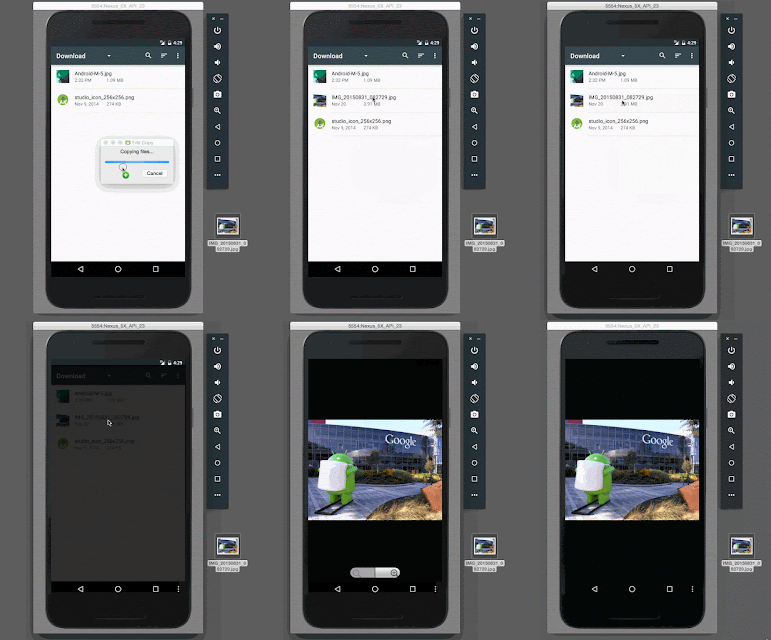
With the new emulator, you can not only drag and drop APKs for quick installation, but you can also drag and drop any file to your emulator’s internal SD card to help in testing.
Extended UI Controls
In the extended controls window, additional options help you validate and test features in your app. As shown below, you can initiate a range of emulator actions such as making a virtual call, sending a virtual SMS, or controlling the power level of the emulator. You can additionally send a single GPS location point to the emulator or play back a custom set of KML or GPX points as well.


We are continuing to add more functionality and we will keep you up to date as we add more features.
Whats Next & Setup
This is just the beginning of developments on the Android Emulator, so expect more features such as support more APIs levels, and adding more sensors with future versions of Android Studio. The new emulator along with Android Studio are available today on the Android Studio canary channel and tools preview channel.
Click here for details on how to setup the preview of the new Android Emulator.
We appreciate your feedback. Connect with us, the Android Studio development team, on Google+.

Available link for download