Tuesday, February 14, 2017
Android Studio 2 2 Preview New UI Designer Constraint Layout
Android Studio 2 2 Preview New UI Designer Constraint Layout

Android Studio 2.2 Preview includes a portfolio of new features along the spectrum of developments, ranging from designing user interfaces to building and debugging your app in new ways. This preview includes the following new categories of features:
Design
- Layout Editor: A new user interface designer that helps you visually design the layouts in your app. Features like blueprint mode and the new properties panel allow you to quickly edit layouts and widgets faster.
- Constraint Layout: A new powerful and flexible Android layout that allows you to express complex UIs without nesting multiple layouts.
- Layout Inspector: Debug a snapshot of your app layout running on the Android Emulator or device. Inspect the view hierarchy and corresponding attributes.
Develop
- Firebase Plugin: Explore and integrate the suite of services offered by Firebase inside of Android Studio. Adding services like Analytics, Authentication, Notifications, and AdMob are just a few clicks away.
- Enhanced Code Analysis: Android Studio checks the quality of your Android app code. In addition to 260 Android lint and code inspections, this release includes new code quality checks for Java 8 language usage and a new inspection infrastructure for more cross-file analysis.
- Samples Browser: Referencing Android sample code is now even easier. Within the code editor window, find occurrences of your app code snippets in Google Android sample code to help jump start your app development.
- Improved C++ Support: Android Studio 2.2 improves C++ development with the ability to edit, build, and debug pre-existing Android projects that use ndk-build or CMake rather than Gradle. Additionally, the existing lldb C++ debugger is now even better with project type auto-detection and a Java language aware C++ mode that lets you use a single debugger process to inspect both Java language and C++ runtimes.
- IntelliJ 2016.1: Android Studio 2.2 includes all the latest updates from the underlying JetBrains product platforms IntelliJ.
Build
- Jack Compiler Improvements: For those using the new Jack compiler, Android Studio 2.2 adds support for annotation processing, as well as incremental builds for reduced build times.
- Merged Manifest Viewer: Diagnose how your AndroidManifest.xml merges with your app dependences across your project build variants.
Test
- Espresso Test Recorder: Record Espresso UI tests simply by using your app as a normal user. As you click through your app UI, reusable and editable test code is then generated for you. You can run the generated tests locally, in your Continuous Integration environment, or in Firebase Test lab.
- APK Analyzer: Drill into your APK to help you reduce your APK size, debug 64K method limit issues, view contents of Dex files and more.
Deeper Dive into the New Features
Design- Layout Editor: Android Studio 2.2 features a new user interface designer. There are many enhancements but some of the highlights include:
- Drag-and-drop widgets from the palette to the design surface or the component tree view of your app.
- Design surface has a blueprint mode to inspect the spacing and arrangement of your layout.
- Properties panel now shows a curated set of properties for quick widget edits with a full sheet of advanced properties one click away.
- UI builder can edit menu and system preference files.
 |
| The new Layout Editor in Android Studio 2.2 Preview |
 |
| Edit Menus in the new Layout Editor |
- Constraint Layout: This new layout is a flexible layout manager for your app that allows you to create dynamic user interfaces without nesting multiple layouts. It is distributed as a support library that is tightly coupled with Android Studio and backwards compatible to API Level 9.
To help you get started, the built-in templates in the New Project Wizard in Android Studio 2.2 Preview now generate a Constraint Layout. Alternately, you can right click on any layout in the new Layout Editor and select the Convert to ConstraintLayout option.
This is an early preview of the UI designer and Constraint Layout, and we will rapidly add enchantments in upcoming releases. Learn more on the Android Studio tools site.
 |
Constraint Layout |
 |
Start Layout Inspector |
- Layout Inspector: For new and existing layouts, many times you may want to debug your app UI to determine if your layout is rendering as expected. With the new Layout Inspector, you can drill into the view hierarchy of your app and analyze the attributes of each component of UI on the screen.
 |
| Layout Inspector |
- Firebase Plugin: Firebase is the new suite of developers services that can help you develop high-quality apps, grow your user base, and earn more money. Inside of Android Studio, you can add Firebase to a new or existing Android app with the new Assistant window. To access the Firebase features click on the Tools menu and then select Firebase. You will want to first setup the brand new Firebase Analytics as the foundation as you explore other Firebase services like Firebase Cloud Messaging or Firease Crash Reporting to add your application. Learn more about the Firebase integration inside Android Studio here.
 |
Firebase Plugin for Android Studio |
- Code Sample Browser: In addition to importing Android Samples, the Code Sample Browser is a menu option inside Android Studio 2.2 Preview that allows you to find high-quality, Google-provided Android code samples based on the currently highlighted symbol in your project. To use the feature, highlight a Variables, Types and Methods in your code then Right Click to show a context menu for Find Sample Code. The results are displayed in a bottom output box.
 |
| Code Sample Browser |
- CMake and NDK-Build: For those of you using the Android NDK, Android Studio now supports building CMake and NDK-Build Android app projects by pointing Gradle at your existing build files. Once you’ve added your cmake or ndk-build project to Gradle, Android Studio will automatically open your relevant Android code files for editing and debugging in Studio.
For CMake users, just add the path to your CMList.txt file in the
externalNativeBuild section of your Gradle file: |
| CMake Build in Android Studio |
For NDK-Build Users, just add the path to your *.mk file in the section of your Gradle file:
 |
| NDK-Build in Android Studio |
- Improved Jack Tools: The new Jack Toolchain compiles your Java language source into Android dex bytecode. The Jack compiler allows some Java 8 language features, like lambdas, to be used on all versions of Android. This release adds incremental build and full support for annotation processing, so you can explore using Java 8 language features in your existing projects.
 |
Enable Jack Incremental Compile Option |
 |
| Enable Jack Annotation Processing |
- Merged Manifest Viewer: Figuring out how your AndroidManifest merges with your project dependencies based on build types, flavors and variants is now easier with Android Studio. Navigate to your AndroidManifest.xml and click on the new Merged Manifest bottom tab. Explore how each node of your AndroidManifest resolves with various project dependencies.
 |
| Merged Manifest Viewer |
- Espresso Test Recorder: Sometimes writing UI tests can be tedious. With the Record Espresso UI tests feature, creating tests is now as easy as just using your app. Android Studio will capture all your UI interactions and convert them into a fully reusable Espresso Test that you can run locally or even on Firebase Test lab. To use the recorder, go to the Run menu and select Record Espresso Test.
 |
| Espresso Test Recorder |
- APK Analyzer: The new APK Analyzer helps you understand the contents and the sizes of different components in your APK. You can also use it to avoid 64K referenced method limit issues with your Dex files, diagnose ProGuard configuration issues, view merged AndroidManifest.xml file, and inspect the compiled resources file (resources.arsc). This can help you reduce your APK size and ensure your APK contains exactly the things you expect.
 |
| APK Analyzer |
- Java-aware C++ Debugger: When debugging C++ code on targets running N and above, you can now use a single, Java language aware lldb instance. This debugger continues to support great lldb features like fast steps and memory watchpoints while also allowing you to stop on Java language breakpoints and view your Java language memory contents.
- Auto Debugger Selection: Android Studio apps can now use debugger type “Auto.” This will automatically enable the appropriate debugger -- the Java language aware C++ debugger if enabled and otherwise the hybrid debugger for C++ projects. Projects exclusively using the Java language will continue to use the Java language debugger.
 |
| Enable Auto Debugger for C++ |
Whats Next
DownloadIf you are using a previous version of Android Studio, you can check for updates on the Canary channel from the navigation menu (Help ? Check for Update [Windows/Linux] , Android Studio ? Check for Updates [OS X]). This update will download a new version, and not patch your existing copy of Android Studio. You can also download Android Studio 2.2 Preview from canary release site.
For the Android Studio 2.2 Preview, we recommend you run a stable version alongside the new canary. Check out the tools site on how to run two versions at the same time.
We appreciate any feedback on things you like, issues or features you would like to see. Connect with us -- the Android Studio development team -- on our Google+ page or on Twitter.
Available link for download

Monday, January 16, 2017
Android Studio 2 0 Preview
Android Studio 2 0 Preview
Posted by, Jamal Eason, Product Manager, Android
One the most requested features we receive is to make app builds and deployment faster in Android Studio. Today at the Android Developer Summit, we’re announcing a preview of Android Studio 2.0 featuring Instant Run that will dramatically improve your development workflow. With Android Studio 2.0, we are also including a preview of a new GPU Profiler.
All these updates are available now in the canary release channel, so we can get your feedback. Since this initial release is a preview, you may want to download and run an additional copy of Android Studio in parallel with your current version.
New Features in Android Studio 2.0
Instant Run: Faster Build & Deploy
Android Studio’s instant run feature allows you to to quickly see your changes running on your device or emulator.
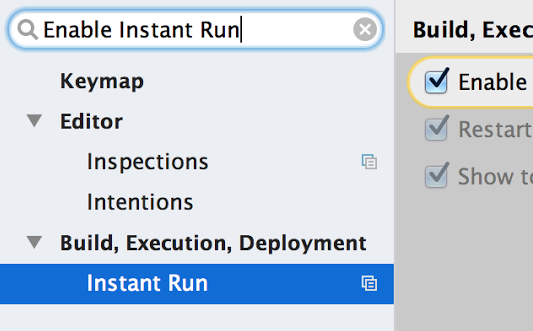
Getting started is easy. If you create a new project with Android Studio 2.0 then your projects are already setup. If you have a pre-existing app open Settings/Preferences, the go to Build, Execution, Deployment ? Instant Run. Click on Enable Instant Run... This will ensure you have the correct gradle plugin for your project to work with Instant Run.

Select Run as normal and Android Studio will perform normal compilation, packaging and install steps and run your app on your device or emulator. After you make edits to your source code or resources, pressing Run again will deploy your changes directly into the running app.

For a more detailed guide setup and try Instant Run, click here.
GPU Profiler
Profiling your OpenGL ES Android code is now even easier with the GPU Profiler in Android Studio. The tool is in early preview, but is very powerful and not only shows details about the GL State and Commands, you can record entire sessions and walk through the GL Framebuffer and Textures as your app is running OpenGL ES Code.

To get started, first download the GPU Debugging Tools package from the Android Studio SDK Manager. Click here for more details about the GPU Profiler tool and how to set up your Android app project for profiling.
Whats Next
This is just a taste of some of the bigger updates in this latest release of Android Studio. Well be going through the full release in more detail at the Android Developer Summit (livestreamed on Monday and Tuesday). Over the next few weeks, well be showing how to take advantage of even more features in Android Studio 2.0, so be sure to check back in.
If youre interested in more Android deep technical content, we will be streaming over 16 hours of content from the inaugural Android Developer Summit over the next two days, and together with Codelabs, all of this content will be available online after the Summit concludes.
Android Studio 2.0 is available today on the Android Studio canary channel. Let us know what you think of these new features by connecting with the Android Studio development team on Google+.
Available link for download
Wednesday, December 28, 2016
Android Studio 1 5
Android Studio 1 5
Posted by, Jamal Eason, Product Manager, Android Android Studio 1.5 is now available in the stable release channel. The latest release is focused on delivering more stability, with most of the enhancements being made under the hood (along with addressing several bugs). |  |
Some of the specific bug fixes, include the ability to use short names when code-completing custom views.

In addition to the stability improvements and bug fixes, we’ve added a new feature to the memory profiler. It can now assist you in detecting some of the most commonly known causes of leaked activities.

There are also several new lint checks. Heres one below which warns you if you are attempting to override resources referenced from the manifest.

If you’re already using Android Studio, you can check for updates from the navigation menu (Help ? Check for Update [Windows/Linux] , Android Studio ? Check for Updates [OS X]). For new users, you can learn more about Android Studio, or download the stable version from the Android Studio site.
As always, we welcome your feedback on how we can help you. You can also connect with the Android developer tools team via Google+. And don’t worry about what’s in the box from the video. It’s nothing. Really. Forget I mentioned it.

Available link for download
Tuesday, December 27, 2016
Android Studio 2 1 supports Android N Developer Preview
Android Studio 2 1 supports Android N Developer Preview
Posted by Jamal Eason, Product Manager, Android

With the launch Android N Developer Preview, we wanted to give you an easy and comprehensive way to build, test and validate your apps on the latest release with Android Studio. Built on the speed and feature enhancements of Android Studio 2.0, the stable release of Android Studio 2.1 includes updates to the IDE wizards, build system and Android Emulator so that you can try out new features and APIs of the developer preview including the new Jack compiler and Java 8 language support. In addition to support for the N Developer Preview, Android Studio 2.1 also includes performance improvements to Instant Run which leads to faster edit and deploy build speeds. If you are developing and validating your app with the N Developer Preview or want faster Instant Run speeds, you should download or update on the stable release channel to Android Studio 2.1.
Android Studio 2.1 includes the following new features:
- N Developer Preview Support: Android Studio 2.1 is the best IDE to test and validate your app with the N Developer Preview. Get the latest versions of the preview SDK, experiment with the new Java 8 support, and gain access to the only official Android Emulator able to run N Developer Preview Emulator System Images to help in your testing.
- Instant Run: For those of you who enjoyed the fast edit, build and deploy cycle with Android Studio 2.0, Instant Run now can now update incremental changes to your app code significantly faster.
Deeper Dive into the New Features
N Developer Preview
On top of new features and APIs of the N Developer Preview, Android Studio 2.1 release includes support for the new Jack compiler and support for Java 8. With the Jack compiler, lambdas, method references, compile-time type annotations, intersection types and type inference are available on all versions of the Android platform. Default and static methods and repeatable annotations are available on Android N and higher. To use Java 8 language features when developing with the N Developer Preview, you need to use the Jack compiler. The New Project Wizard [File? New? Project] generates the correct configurations for projects targeting the N.
Getting started with development is as easy generating a new project or updating a few settings in your existing project. Once you are ready to test, you can create a fresh Android Virtual Device (AVD) and run your app on the N Developer Preview using the new Android Emulator.

Instant Run & General Build Performance Improvements
Instant Run and general build speed are now faster with two new features: incremental Java compilation and in-process dex.
In previous versions of Android Studio, a single line of Java code change will cause all the Java sources in the module to be recompiled. Now in Android Studio 2.1, incremental Java compilation is enabled by default to reduce compilation time by compiling only what is needed.
We are also speeding up build times by using in-process dex, which converts class files to dex files within the Gradle daemon process. This avoids the costly processing operation of creating separate dex processes. To use this feature, you will need to increase the amount of memory available to the Gradle daemon to at least 2GB (1 GB is the default). This feature will help speed up both incremental and full builds.
We’d appreciate your feedback as we continue to improve Instant Run and general build performance. We are going to keep working on making build times even faster in coming releases. Click here to learn even more about the build changes.
Whats Next
Update
If you are using a previous version of Android Studio, you can check for updates on the Stable channel from the navigation menu (Help ? Check for Update [Windows/Linux] , Android Studio ? Check for Updates [OS X]). If you need a new copy of Android Studio, you can download it here.
Test and Validate Apps with N Developer Preview
After you update to or download Android Studio 2.1 and you want to test and develop your apps with the N Developer Preview, create a fresh Android Virtual Device (AVD) for the new Android emulator, and check out these additional setup instructions.
We appreciate any feedback on things you like, issues or features you would like to see. Connect with us -- the Android Studio development team -- on our Google+ page or on Twitter.
Available link for download
Monday, December 12, 2016
Android Studio 2 0 Beta
Android Studio 2 0 Beta

Posted by Jamal Eason, Product Manager, Android
Android Studio 2.0 is latest release of the official Android IDE focused on build performance and emulator speed to improve the app development experience. With brand new features like Instant Run which enables you to quickly edit and view code changes, or the new & faster Android emulator, Android Studio 2.0 is the upgrade you do not want to miss. In preparation for the final release, you can download Android Studio 2.0 Beta in the Beta release channel. Overall, the Android Studio 2.0 release has a host of new features which include:
- *Updated for Beta* Instant Run - Enables a faster code edit & app deployment cycle.
- *Updated for Beta* Android Emulator - Brand new emulator that is faster than most real devices, and includes a brand new user interface.
- *Updated for Beta* Google App Indexing Integration & Testing - Adding App Indexing into your app helps you re-engage your users. In the first preview of Android Studio 2.0 you could add indexing code stubs into your code. With the beta release you can now test and validate your URL links in your app all within the IDE.
- Fast ADB - Installing and pushing files is now up to 5x faster using Android Studio 2.0 with an updated Android Debug Bridge (ADB) offered in platform-tools 23.1.0.
- GPU Profiler Preview - For graphics intensive applications, you can now visually step through your OpenGL ES code to optimize your app or game
- Integration of IntelliJ 15 - Android Studio is based on the efficient coding platform of Intellij. Check out the new features from IntelliJ here.
Check out the latest installment of Android Studio Tool Time video below to watch the highlights of the features.
New Features in Android Studio 2.0 Beta
Instant Run
We first previewed Instant Run in November; this latest beta release introduces a new capability called Cold Swap
Instant Run in Android Studio 2.0 allows you to quickly make changes to your app code while your app is running on an Android device or Android Emulator. Instead of waiting for your entire app to rebuild and redeploy after each code change, Android Studio 2.0 will try to incrementally build and push only the incremental code or resource change. Depending on the code changes you make, you can see the results of your change in under a second. By simply updating your app to use the latest Gradle plugin ( com.android.tools.build:gradle:2.0.0-beta2’ ), you can take advantage of this time saving features with no other modifications to your code. If your project is setup correctly with Instant Run, you will see a lightning bolt next to your Run button on the toolbar:

Behind the scenes, Android Studio 2.0 instruments your code during the first compilation and deployment of your app to your device in order to determine where to swap out code and resources. The Instant Run features updates your app on a best-effort basis and automatically uses one of the following swap methods to update your app:
- Hot Swap - When only method implementations (including constructors) are changed, the changes are hot swapped. Your application keeps running and the new implementation is used the next time the method is called.
- Warm Swap - When app resources are changed, the changes are warm swapped. This is similar to a hot swap, except that the current Activity is restarted. You will notice a slight flicker on the screen as the Activity restarts.
- *New for Beta* Cold Swap - This will quickly restart the whole application. Typically for structural code change, including changes to the class hierarchy, method signatures, static initializers, or fields. Cold Swap is available when you deploy to targets with API level 21 or above.
We made major changes to Instant Run since the first preview of Android Studio 2.0, and now the feature works with more code and resources cases. We will continue to add more code change cases to Instant Run in future releases of Android Studio. If you have any suggestions, please feel free to send us a feature request and learn more about Instant Run here.
App Indexing
Supporting app indexing is now even easier with Android Studio 2.0. App Indexing puts your app in front of users who use Google Search. It works by indexing the URL patterns you provide in your app manifest and using API calls from your app to make content within your app available to both existing and new users. Specifically, when you support URLs for your app content, your users can go directly to those links from Google Search results on their device.
- Code Generation Introduced in Android Studio 2.0 Preview, you can right click on AndroidManifest.xml or Activity method (or go to Code ? Generate…? App Indexing API Code) to insert HTTP URL stub codes into your manifest and app code.

- *New for Beta* URL Testing & Validation What is new in Android Studio 2.0 Beta is that you can now validate and check the results of your URLs with the built-in validation tool (Tools ? Android ? Google App Indexing Test). To learn more about app indexing, click here.


Android Emulator
*Updated for Beta* The new and faster Android emulator also includes fixes and small enhancements for this beta release. Notably, we updated the rotation controls on the emulator toolbar and added multi-touch support to help test apps that use pinch & zoom gestures. To use the multi-touch feature, hold down the Alt key on your keyboard and right-click your mouse to center the point of reference or click & drag the left mouse button to zoom.

Whats Next
Android Studio 2.0 is a big release, and now is good time to check out the beta release to incorporate the new features into your workflow. The beta release is near stable release quality, and should be relatively bug free. But as with any beta release, bugs may still exist, so, if you do find an issue, let us know so we can work to fix it. If you’re already using Android Studio, you can check for updates on the Beta channel from the navigation menu (Help ? Check for Update [Windows/Linux] , Android Studio ? Check for Updates [OS X]). When you update to beta, you will get access to the new version of Android Studio and Android Emulator.
Connect with us, the Android Studio development team, on Google+.
Available link for download
Monday, December 5, 2016
Android Developer Story Zabob Studio and Buff Studio reach global users with Google Play
Android Developer Story Zabob Studio and Buff Studio reach global users with Google Play
Posted by Lily Sheringham, Google Play team
South Korean Games developers Zabob Studio and Buff Studio are start-ups seeking to become major players in the global mobile games industry.
Zabob Studio was set up by Kwon Dae-hyeon and his wife in 2013. This couple-run business has already published ten games, including hits ‘Zombie Judgement Day’ and ‘Infinity Dungeon.’ So far, the company has generated more than KRW ?140M (approximately $125,000 USD) in sales revenue, with about 60 percent of the studio’s downloads coming from international markets, such as Taiwan and Brazil.
Elsewhere, Buff Studio was founded in 2014 and right from the start, its first game Buff Knight was an instant hit. It was even featured as the ‘Game of the Week’ on Google Play and was included in “30 Best Games of 2014” lists. A sequel is already in the works showing the potential of the franchise.
In this video, Kwon Dae-hyeon, CEO of Zabob Studio, and Kim Do-Hyeong, CEO of Buff Studio, talk about how Google Play services and the Google Play Developer Console have helped them maintain a competitive edge, market their games efficiently to global users and grow revenue on the platform.
Check Zabob Studio apps and Buff Knight on Google Play!
We’re pleased to share that Android Developer Stories will now come with translated subtitles on YouTube in popular languages around the world. Find out how to turn on YouTube captions. To read locally translated blog posts, visit the Google developer blog in Korean.
+Android Developers

Available link for download
Sunday, December 4, 2016
Android Studio 2 0
Android Studio 2 0

Posted by Jamal Eason, Product Manager, Android
Android Studio 2.0 is the fastest way to build high quality, performant apps for the Android platform, including phones and tablets, Android Auto, Android Wear, and Android TV. As the official IDE from Google, Android Studio includes everything you need to build an app, including a code editor, code analysis tools, emulators and more. This new and stable version of Android Studio has fast build speeds and a fast emulator with support for the latest Android version and Google Play Services.
Android Studio is built in coordination with the Android platform and supports all of the latest and greatest APIs. If you are developing for Android, you should be using Android Studio 2.0. It is available today as a easy download or update on the stable release channel.
Android Studio 2.0 includes the following new features that Android developer can use in their workflow :
- Instant Run - For every developer who loves faster build speeds. Make changes and see them appear live in your running app. With many build/run accelerations ranging from VM hot swapping to warm swapping app resources, Instant Run will save you time every day.
- Android Emulator - The new emulator runs ~3x faster than Android’s previous emulator, and with ADB enhancements you can now push apps and data 10x faster to the emulator than to a physical device. Like a physical device, the official Android emulator also includes Google Play Services built-in, so you can test out more API functionality. Finally, the new emulator has rich new features to manage calls, battery, network, GPS, and more.
- Cloud Test Lab Integration - Write once, run anywhere. Improve the quality of your apps by quickly and easily testing on a wide range of physical Android devices in the Cloud Test Lab right from within Android Studio.
- App Indexing Code Generation & Test - Help promote the visibility your app in Google Search for your users by adding auto-generated URLS with the App Indexing feature in Android Studio. With a few click you can add indexable URL links that you can test all within the IDE.
- GPU Debugger Preview - For those of you developing OpenGL ES based games or apps, you can now see each frame and the GL state with the new GPU debugger. Uncover and diagnosis GL rendering issues by capturing and analyzing the GPU stream from your Android device.
- IntelliJ 15 Update - Android Studio is built on the world class Intellij coding platform. Check out the latest Intellij features here.
Deeper Dive into the New Features
Instant Run
Today, mobile platforms are centered around speed and agility. And yet, building for mobile can sometimes feel clunky and slow. Instant Run in Android Studio is our solution to keep you in a fast and fluid development flow. The feature increases your developer productivity by accelerating your edit, build, run cycles. When you click on the Instant Run button ( ), Instant Run will analyze the changes you have made and determine how it can deploy your new code in the fastest way.

Whenever possible, it will inject your code changes into your running app process, avoiding re-deployment and re-installation your APK. For some types of changes, an activity or app restart is required, but your edit, build and run cycles should still be generally much faster than before. Instant Run works with any Android Device or emulator running API 14 (Ice Cream Sandwich) or higher.
Since previewing Instant Run at the end of last year, we’ve spent countless hours incorporating your feedback and refining for the stable release. Look for even more acceleration in future releases because build speeds can never be too fast. To learn how you can make the most out of Instant Run in your app development today, please check out our Instant Run documentation.
Android Emulator
The new Android Emulator is up to 3x faster in CPU, RAM, & I/O in comparison to the previous Android emulator. And when youre ready to build, ADB push speeds are a whopping 10x faster! In most situations, developing on the official Android Emulator is faster than a real device, and new features like Instant Run will work best with the new Android emulator.
In addition to speed and performance, the Android Emulator has a brand user interface and sensor controls. Enhanced since the initial release, with the emulator you can drag and drop APKs for quick installation, resize and rescale the window, use multi-touch actions (pinch & zoom, pan, rotate, tilt) and much more.

Trying out the new emulator is as easy as updating your SDK Tools to 25.1.1 or higher, create a fresh Android Virtual Device using one of the recommended x86 system images and you are ready to go. Learn more about the Android Emulator by checking out the documentation.
Cloud Test Lab
Cloud Test Lab is a new service that allows you to test your app across a wide range of devices and device configurations at scale in the cloud. Once you complete your initial testing with your Android Emulator or Android device, Cloud Test Lab is a great extension to your testing process that provides you to run through a collection of tests against a portfolio of physical devices hosted in Google’s data centers. Even if you do not have tests explicitly written, Cloud Test Lab can perform a basic set of tests to ensure that your app does not crash.
The new interface in Android Studio allows you to configure the portfolio of tests you want to run on Cloud Test Lab, and allows you to also see the results of your tests. To learn more about the service go here.

App Indexing
It is now easier for your users to find your app in Google Search with the App Indexing API. Android Studio 2.0 helps you to create the correct URL structure in your app code and add attributes in your AndroidManifest.xml file that will work the Google App Indexing service. After you add the URLs to your app, can you test and validate your app indexing code as shown here:

Check out this link for more details about app indexing support in Android Studio.
GPU Debugger Preview
If you are developing OpenGL ES games or graphics-intensive apps, you have a new GPU debugger with Android Studio 2.0. Although the GPU debugger is a preview, you can step through your app frame by frame to identify and debug graphics rendering issues with rich information about the GL state. For more details on how to setup your Android device and app to work with the tool, check out the tech documentations here.

Whats Next
Update
If you are using a previous version of Android Studio, you can check for updates on the Beta channel from the navigation menu (Help ? Check for Update [Windows/Linux] , Android Studio ? Check for Updates [OS X]). If you need a new copy of Android Studio, you can download it here. If you developing for the N Developer Preview, check out this additional setup instructions.
Set Up Instant Run & Android Emulator
After you update to or download Android Studio 2.0, you should upgrade your projects to use Instant Run, and create a fresh Android Virtual Device (AVD) for the new Android emulator and you are on your way to a fast Android development experience.
Using Instant Run is easy. For each of your existing projects you will see a quick prompt to update your project to the new gradle plugin version (com.android.tools.build:gradle:2.0.0).
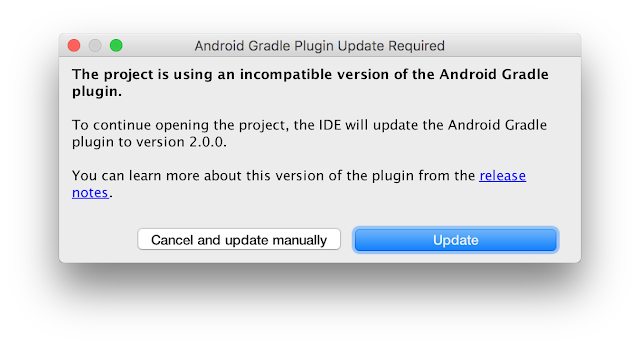
For all new app projects in Android Studio 2.0, Instant Run is on by default. Check out the documentation for more details.
We are already hard at work developing the next release of Android Studio. We appreciate any feedback on things you like, issues or features you would like to see. Connect with us -- the Android Studio development team -- on our new Google+ page or on Twitter.
Available link for download
Monday, October 31, 2016
Leveraging product flavors in Android Studio for hermetic testing
Leveraging product flavors in Android Studio for hermetic testing
Posted by Jose Alcérreca, Developer Programs Engineer and Wojtek Kalici?ski, Developer Advocate
During our recent talk at Android Dev Summit, we discuss the state of testing on Android on the example of a simple Notes application that we created as part of our testing codelab. In one section of the talk, we discuss the problem of test flakiness and introduce a simple solution for setting up a hermetic testing environment.
Combatting flaky tests
UI tests with frameworks like Espresso or UI Automator can easily get flaky if the application has external dependencies that can sometimes fail or take long to respond. In short, flaky tests are tests that are not reliable (they can pass or fail randomly) which defeats the whole purpose of having tests in the first place.
A common solution to this problem is hermetic testing or, in other words, making sure that your tests are isolated from dependencies. Using fake implementations or fake servers that just return predefined data is a common way of dealing with this problem. Here are some good examples:
- Network calls can be made via a fake API client or fake server that immediately returns data from files stored on disk instead of hitting the network. This bypasses the networks latency and flakiness as well as any errors originating on the real server.
- Interactions with low-level framework APIs (especially those for accessing hardware, like camera or storage) can be passed through an intermediate interface. A fake implementation of this interface could return immediately, providing a reference to preloaded data, such as an image, without relying on the hardware.
- Any sensors can be replaced with fakes too: GPS, microphone, accelerometer etc., giving you a chance to test on data that would be difficult to provide for the test in real life, like a preset location or a set of inputs simulating a gesture.
Dependency Injection (DI) is a software design pattern that facilitates testing, reusing modules and making them interchangeable. DI frameworks can help you deal with the boilerplate associated with this pattern but it can take a considerable amount of time to set them up and understand how they work. Before you are ready to commit to one of those frameworks for your app, you might want to explore an easier way, especially if your project requirements are simple.
Managing dependencies with product flavors
Product flavors is a powerful feature of Android Studio and our Android Gradle plugin that lets you swap Java classes at compile time and doesnt require additional libraries. Some typical examples of flavor dimensions are:
- free/paid flavors to generate two different APKs that will be released on your distribution channels
- stable/experimental to keep experiments in a different source set and generate beta versions quickly
We can leverage the same mechanism to create two separate versions of our app to help with hermetic testing:
- prod - uses real implementation of services and components, using real data and resources
- mock - for a version that contains fake implementations of dependencies that are hard to test
The procedure is very simple:
- Create the flavors in your app/build.gradle file.
android { productFlavors { mock { applicationIdSuffix = ".mock" } prod } } - Create two directories: app/src/prod and app/src/mock

- Create the class that you want to use for production code in the
prod/javafolder or move it frommain/java.Make sure themain/javafolder does not contain this class. - Create the same class (with the exact same class and file name) in the mock/java folder, but providing a different (fake) implementation that will be used for tests.
- In the Build Variants window in Android Studio, choose the variant that you want to install or run tests against. A variant is the combination of a flavor and a build type.

Note: In gradle, the task names change when you add flavors. Instead of installDebug, you will now have to choose installProdDebug or installMockDebug.
Running your tests
With the prod and mock flavors configured and your mock implementation in place, you can now use the following gradle tasks to choose how your tests should run:
connectedMockDebugAndroidTestwill merge theandroidTestandandroidTestMockdirectories and run every test found in the resulting source set. As these tests are run in a hermetic way, they will be faster and less flaky. This is ideal for a pre-submit check.connectedProdDebugAndroidTestwill use the real APIs and sensors so they might fail from time to time. If you have a Continuous Integration system, this task could be executed every night or used manually as a acceptance end-to-end test. Note that this task will run the tests inandroidTesteven ifandroidTestProddoesnt exist.
You can refer to our Android Testing Codelab to see how we used this method to provide different Injection class implementations, the one in prod providing real data and the other (mock) serving fake dependencies that use fake data for isolated test execution.
When you’re happy with your hermetic setup, you might want to give more flexibility to your build process and add even more dimensions to be able to interchange different components in your app. While the method discussed above is suitable for simple projects, for more complex situations it would be much better to invest some time to learn about and add a Dependency Injection framework to your project.
Available link for download
Tuesday, October 4, 2016
Android Studio 2 0 Preview Android Emulator
Android Studio 2 0 Preview Android Emulator
Posted by, Jamal Eason, Product Manager, Android

An early preview of the new Android Emulator is now available to try out. As a part of Android Studio 2.0, the latest version of the Android Emulator can help you test your app on a wide range of screens size and configurations beyond the physical Android hardware you use to test.Moreover, using the official Android emulator enables you to test with latest Android versions. Building on this foundation, the top two benefits of new Android emulator are:
- Speed & Performance: When emulating the latest Android 6.0 release (Marshmallow), we now support Symmetric Multi-Processing and have made significant I/O improvements in both the emulator and ADB. This means you will have faster performance when you are testing your app.
- Usability & User Interface: The new Android Emulator includes a brand new user interface to make the emulator easy to use. You no longer have to rely on command-line parameters to use the Android emulator. Common tasks and emulator features are now just a mouse click or a keyboard shortcut away.
We previewed the user interface at the Android Dev Summit. You can try it out today along with the new version of ADB for faster APK installation and file transfers to the emulator. Check out the video for a demonstration of the new Android Emulator.
We are seeking early feedback to continue to deliver the experience and features that will make you more productive.
Performance Improvements
CPU Performance
Android Studio now uses CPU acceleration on x86 emulator system images by default. Combined with new Symmetric Multi-Processor (SMP) support in Android 6.0 Marshmallow system images, the Android emulators can perform even faster than many physical Android devices. Multi-core support not only makes your apps and the emulator run faster but it provides the added advantage of speeding up common developer tasks such as installing APKs. Also, with SMP you can test apps that specifically target multi-processor Android devices.
Faster ADB
In addition to faster CPU speeds in the emulator, there are a number of under-the-hood improvements that will make the experience faster. One of the bottlenecks in the development process that we worked on is the speed of pushing data between Android Studio and your device using ADB (Android Debug Bridge). When you use Android 6.0 Marshmallow and higher system images with the new Android Emulator, you can now push files across ADB up to five times faster than a real device. This will help you if you push large APK or files during your app development cycle.
User Interface
Toolbar
The new interface exposes some of the most common emulator actions in a new toolbar and control panel instead of solely relying on command line options. For the preview, the Android Emulator toolbar enables actions, such as volume control, screen rotation, and screen-shots of the emulator window.

Window Zooming & Scaling
Now you can resize your window simply by dragging a corner. You can also zoom and scroll to get a closer look at a portion of your screen.
 |  |
Drag & Drop
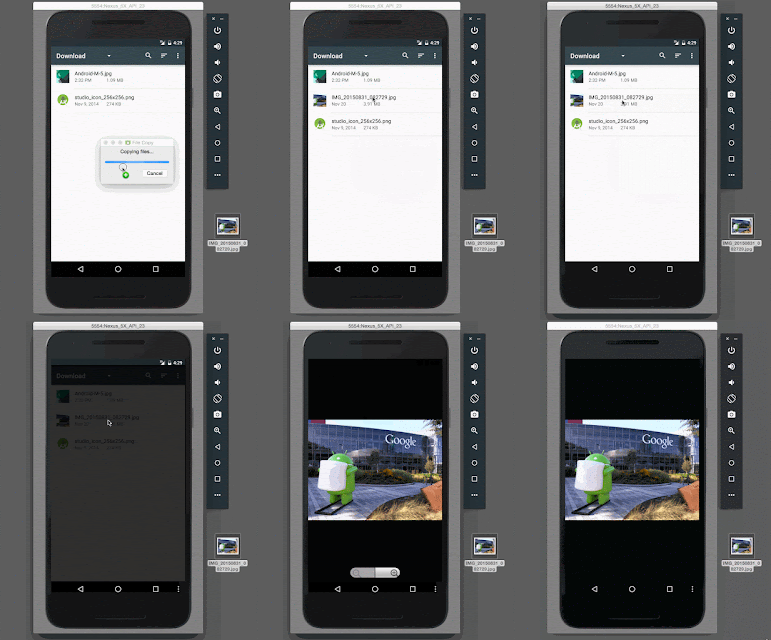
With the new emulator, you can not only drag and drop APKs for quick installation, but you can also drag and drop any file to your emulator’s internal SD card to help in testing.
Extended UI Controls
In the extended controls window, additional options help you validate and test features in your app. As shown below, you can initiate a range of emulator actions such as making a virtual call, sending a virtual SMS, or controlling the power level of the emulator. You can additionally send a single GPS location point to the emulator or play back a custom set of KML or GPX points as well.


We are continuing to add more functionality and we will keep you up to date as we add more features.
Whats Next & Setup
This is just the beginning of developments on the Android Emulator, so expect more features such as support more APIs levels, and adding more sensors with future versions of Android Studio. The new emulator along with Android Studio are available today on the Android Studio canary channel and tools preview channel.
Click here for details on how to setup the preview of the new Android Emulator.
We appreciate your feedback. Connect with us, the Android Studio development team, on Google+.

Available link for download