Showing posts with label sony. Show all posts
Showing posts with label sony. Show all posts
Tuesday, February 14, 2017
Flashtool How to flash the Sony Xperia Z5 Compact with stock ROM Flashtool
Flashtool How to flash the Sony Xperia Z5 Compact with stock ROM Flashtool
Over the past couple of days, I have been experiencing various issues with flashtool. Using the internets help and many hours of my time I managed to fix most of these problems that occurred for me. Although there are hundreds of Flashtool step by step instructions, I thought it would be best for an updated and more in depth on what you should be aware of first before clicking "Flash".
Firstly, I do not take responsibility for any device broken or damaged since there is ALWAYS a minute chance of your device bricking.
Lets start, shall we?
Things Needed
Okay to start off.. Yes, this should work with other phones however I am not providing the stock roms for those, it takes a simple google search to find them ie. "Sony Xperia Z5 Stock Rom ftf"
You dont need the latest stock rom either since you can update once the phone is setup depending on if you have access to OTA updates (Over the Air).
Step 1.
Download flashtool if you havent already. If you have an older version of flashtool, uninstall it and make sure all old files are gone for good and also be sure the new one is fully installed. I prefer to use the magnet link on the website (for torrents) since using uploaded.net takes forever.
Step 2a.
If youre on Windows 8/8.1 then please take note to this specific paragraph, any other OS skip to 2b Windows 8/8.1 like to have its security tight, so they block you from installing drivers with unsigned certificates to "keep your computer from harm" but just go ahead and follow the instructions to allow your computer install these drivers. If the drivers arent installed correctly, then you wont be flashing anything today :p Okay, go to Settings>General and then click on Restart Now under Advanced Startup.
This will restart your PC. It will then take you to a screen that gives you various options. On Windows 8 you will see Troubleshoot and on Windows 8.1 you will see Start-up Settings. Select either that appears. This will take you to another page that will ask to restart windows in order to use some advanced startup features, just click Restart. If it already takes you to the page without restart, or if your computer just restarted and youre getting the options of what to select, make sure you select Disable driver signature enforcement.
Your computer should now restart with driver signature enforcement disabled. Now, go ahead and carry on with the instructions in 2b!
Step 2b.
Navigate to the drivers folder where you installed Flashtool. If you cant remember where you installed it, the default directory should be in "C:Flashtool". Open Flashtool-drivers.exe and install:
Now we have successfully installed the drivers for flashtool and our device! :D
Step 3.
Find the stock rom you downloaded, copy and paste it into your firmwares folder in flashtool. For me, this is in "C:UsersMatty.flashToolfirmwares". People have been saying to delete the folders inside the firmwares folder, do not do this as the flash might not work.
Step 4.
Note
If youre running 64bit, I recommend you to not use Flashtool64.exe at first, just use the standard Flashtool.exe. If you dont get an icon on your desktop from the setup, just navigate to the folder in the directory you installed it in, then right click and click send to desktop so you can access it easy :)
Step 5.
Open Flashtool from your newly created shortcut on your desktop. Click the Flash icon, then click Flashmode, then hit Ok. Click your Firmware on the left to start off with. You might have to hit the firmware dropdown until it gets to the actual firmware like so:
If you want to remove all your data, where it says Wipe, hit all the boxes. (APPS_LOG, DIAG, SSD, USERDATA). Then click Flash. You will now see "Preparing files for flashing" on your screen. Be very patient, and in the meantime, turn your phone off ready to enter Flashmode. Make sure your phone is switched off and NOT plugged.
When you see this box come up on your computer, Its probably time to connect the USB to your computer, and enter flashmode on your phone.
Plug the USB into your computer
(TRY USB 2.0 FIRST, SOME REASON NO USB 3.0 PORT WORKED FOR ME+MANY OTHER PEOPLE HAD PROBLEMS WITH USB 3.0 I.E loader.sin errors)
Entering Flash Mode
Hold the Volume Down button and plug the USB cable from your computer into your phone. You should hear the Windows noise it makes to say the device is connected to the PC. If any extra drivers are needed to complete the flash it could take longer for the flash to start. You should then see a constant green light in the top right of your device, gently put it somewhere without unplugging the charger and let Flashtool do the hard work :)
Step 6.
Leave the device for no longer than 30 minutes. However, if youre unsure be safe and leave it for a full hour, go out have a nice brew, do a tap and dance and come back and it should be done. The only reason it would get stuck is because you unplugged the phone during the Flash, or if the cable somewhat died throughout the operation. If so, repeat the instructions in hope your device will be as good as new :)
Flashtool will now let you know when it is done. It will say "Flashing finished, please uplug and start your phone."
If it says that, hooray! You have successfully flashed your phone with stock rom!
If not and you get an error before it even wants to flash, or throughout the process you get an error, post it below and Ill take a look. Im not very good but I know quite a few errors.
END OF TUTORIAL :)
I just thought Id help the community out in a way that I can, since Im bad at like everything else lol.
Peace folks :highfive: :cyclops:
Firstly, I do not take responsibility for any device broken or damaged since there is ALWAYS a minute chance of your device bricking.
Lets start, shall we?
Things Needed
- Z5 Compact ;)
- Original Cable (or any cable actually that is working and can transfer files)
- Flashtool 0.9.22.3
- Sony Xperia Z5 Compact Stock Rom
Okay to start off.. Yes, this should work with other phones however I am not providing the stock roms for those, it takes a simple google search to find them ie. "Sony Xperia Z5 Stock Rom ftf"
You dont need the latest stock rom either since you can update once the phone is setup depending on if you have access to OTA updates (Over the Air).
Step 1.
Download flashtool if you havent already. If you have an older version of flashtool, uninstall it and make sure all old files are gone for good and also be sure the new one is fully installed. I prefer to use the magnet link on the website (for torrents) since using uploaded.net takes forever.
Step 2a.
If youre on Windows 8/8.1 then please take note to this specific paragraph, any other OS skip to 2b Windows 8/8.1 like to have its security tight, so they block you from installing drivers with unsigned certificates to "keep your computer from harm" but just go ahead and follow the instructions to allow your computer install these drivers. If the drivers arent installed correctly, then you wont be flashing anything today :p Okay, go to Settings>General and then click on Restart Now under Advanced Startup.

This will restart your PC. It will then take you to a screen that gives you various options. On Windows 8 you will see Troubleshoot and on Windows 8.1 you will see Start-up Settings. Select either that appears. This will take you to another page that will ask to restart windows in order to use some advanced startup features, just click Restart. If it already takes you to the page without restart, or if your computer just restarted and youre getting the options of what to select, make sure you select Disable driver signature enforcement.

Your computer should now restart with driver signature enforcement disabled. Now, go ahead and carry on with the instructions in 2b!
Step 2b.
Navigate to the drivers folder where you installed Flashtool. If you cant remember where you installed it, the default directory should be in "C:Flashtool". Open Flashtool-drivers.exe and install:
- Flashmode Drivers
- Fastboot Drivers
- Z5 Compact Device Driver (Or whatever your device is)
Now we have successfully installed the drivers for flashtool and our device! :D
Step 3.
Find the stock rom you downloaded, copy and paste it into your firmwares folder in flashtool. For me, this is in "C:UsersMatty.flashToolfirmwares". People have been saying to delete the folders inside the firmwares folder, do not do this as the flash might not work.
Step 4.
Note
If youre running 64bit, I recommend you to not use Flashtool64.exe at first, just use the standard Flashtool.exe. If you dont get an icon on your desktop from the setup, just navigate to the folder in the directory you installed it in, then right click and click send to desktop so you can access it easy :)
Step 5.
Open Flashtool from your newly created shortcut on your desktop. Click the Flash icon, then click Flashmode, then hit Ok. Click your Firmware on the left to start off with. You might have to hit the firmware dropdown until it gets to the actual firmware like so:

If you want to remove all your data, where it says Wipe, hit all the boxes. (APPS_LOG, DIAG, SSD, USERDATA). Then click Flash. You will now see "Preparing files for flashing" on your screen. Be very patient, and in the meantime, turn your phone off ready to enter Flashmode. Make sure your phone is switched off and NOT plugged.
When you see this box come up on your computer, Its probably time to connect the USB to your computer, and enter flashmode on your phone.

Plug the USB into your computer
(TRY USB 2.0 FIRST, SOME REASON NO USB 3.0 PORT WORKED FOR ME+MANY OTHER PEOPLE HAD PROBLEMS WITH USB 3.0 I.E loader.sin errors)
Entering Flash Mode
Hold the Volume Down button and plug the USB cable from your computer into your phone. You should hear the Windows noise it makes to say the device is connected to the PC. If any extra drivers are needed to complete the flash it could take longer for the flash to start. You should then see a constant green light in the top right of your device, gently put it somewhere without unplugging the charger and let Flashtool do the hard work :)
Step 6.
Leave the device for no longer than 30 minutes. However, if youre unsure be safe and leave it for a full hour, go out have a nice brew, do a tap and dance and come back and it should be done. The only reason it would get stuck is because you unplugged the phone during the Flash, or if the cable somewhat died throughout the operation. If so, repeat the instructions in hope your device will be as good as new :)
Flashtool will now let you know when it is done. It will say "Flashing finished, please uplug and start your phone."

If it says that, hooray! You have successfully flashed your phone with stock rom!
If not and you get an error before it even wants to flash, or throughout the process you get an error, post it below and Ill take a look. Im not very good but I know quite a few errors.
END OF TUTORIAL :)
I just thought Id help the community out in a way that I can, since Im bad at like everything else lol.
Peace folks :highfive: :cyclops:
from xda-developers http://ift.tt/2aEzLdz
via IFTTT
Available link for download

Tuesday, November 29, 2016
Cómo Intermitente Rom Sony Xperia Play R800i Via Flashtool
Cómo Intermitente Rom Sony Xperia Play R800i Via Flashtool

Completo tutorial para flashear Sony Xperia Play R800i con el software Flashtool, y les dejo los Firmwares originales para todas las regiones del mundo. Sony Xperia Play R800i flashtool puede ser utilizado para instalar ROMs o firmwares en los dispositivos xperia también se puede utilizar para obtener acceso root, flashear recoverys, flashear ROMs modificadas, hacer particiones e instalar kernels. En nuestros tutoriales solemos utilizar este software para realizar muchos procedimientos, como son el flasheo de una ROM, la instalación de un nuevo Recovery etc.
- ARCHIVOS NECESARIOS :
- Controlador USB PC Componion [For Windows] o [For Mac]
- Xperia FlashTool [DESCARGAR]
- Rom, Firmware Sony Xperia Play R800i [DESCARGAR]
- Bateria por lo menos al 50%
- PASOS A SEGUIR :
- Cuando Flashtool haya acabado de descargar la imagen de Android, quedará guardada en C:/Flashtool/Firmwares como un archivo FTF
- Desconectar el cable USB Xperia Play R800i
- Apagar el celular
- Presionar y mantener el botón “volver atrás / volumen abajo” (en los terminales modernos de Sony el botón de bajar el volumen suele hacer ahora esta función, no obstante es mejor consultar para cada dispositivo la tecla específica)
- Conectar el cable USB al teléfono
- Soltar el botón de “volver atrás / volumen abajo” cuando la imagen que muestra qué botón pulsar desaparezca, El proceso de flasheo comenzará, y veremos esta pantalla
- Espera entonces a que Flashtool termine con el proceso. Después se te pedirá que vuelvas a encender tu teléfono. Si todo ha ido bien.
ya tendrías tu teléfono con un nuevo firmware actualizado y listo para funcionar Sony Xperia Play R800i. Si te animas a probar Flashtool.
Cómo utilizar FlashTool para actualizar el dispositivo Sony Xperia
Available link for download
Tuesday, October 11, 2016
How to Update Sony Xperia Z5 E6653 to Android 6 0 1 Marshmallow Firmware 32 2 A 0 253
How to Update Sony Xperia Z5 E6653 to Android 6 0 1 Marshmallow Firmware 32 2 A 0 253
A new firmware update is now rolling for the Sony Xperia Z5 which moves the build number from 32.2.A.0.224 to version 32.2.A.0.253. The update includes a number of bug fixes as well as improved handling of Bluetooth devices.
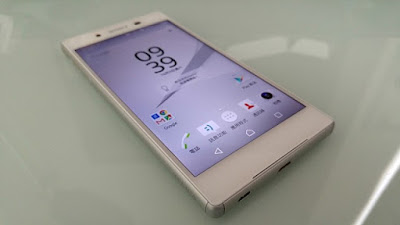
Don’t worry we are going to share step by step guide to safely update your Xperia Z5 E6653 to Android 6.0.1 Marshmallow Firmware 32.2.A.0.253.
View my Flipboard Magazine.
÷ Prerequisites:
This Tutorial is only for Sony Xperia Z5 E6653 variant.
*Disclaimer:
Android Custom ROM fix ® provide various Firmware Updates and Rooting process along with Custom ROM,Modes,file are all belong to their owners/developers. The autor of this site or the developers are not responsible, if you damage or brick your device.Do it on your own risk and follow the instruction properly.
* Important:
Backup important files stored on your device before proceeding with the steps below, so that in case something goes wrong you’ll have backup of all your important files.

÷ How to Update Sony Xperia Z5 E6653 to Android 6.0.1 Marshmallow Firmware 32.2.A.0.253:
1- Download and install latest Flashtool .
2- Download Android 6.0.1 Marshmallow Firmware 32.2.A.0.253 for Sony XPERIA Z5
3- Paste the ftf file downloaded in step c) to folder „Firmware“ included in the XPERIA Flashtool
4- Open the XPERIA Flashtool, click on flash and choose downloaded firmware, than click ok. Important - if you do not want to delete any data of your phone, just uncheck flashing userdata.sin file. All data will remain in your phone, but sometimes it can cause additional troubles. So it is better (and I recommend that) to do the backup of your personal data, than proceed with clean instalation and then restore your personal data.
5- Turn off your phone and when Flashtool shows pop up window, connect phone to PC with holding volume down button
6- after few minutes all is done and your phone gets the new firmware.
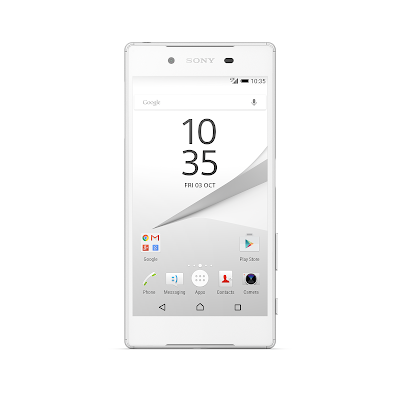 That’s it! Your XPERIA Z5 should now have Marshmallow 6.0.1 firmware 32.2.A.0.253. on your phone! Go to Settings > About phone to verify.
For More Sony Xperia Z5 Update Keep Checking Android Custom ROM Fix ™®
That’s all. We hope this guide serves you well. If there’s anything you’d like to be added/changed on this page, PLZ Use the comment box below to contribute more ideas & Suggestions .
Like this post? PLZ Hit the share buttons below to share this article with your friends on Facebook, Google + and Twitter.
Want the latest Updates Sign up for our newsletters!
PLZ Follow Us On Flipboard 4 More Latest Updates.
Best Regards.™
÷ Prerequisites:
This Tutorial is only for Sony Xperia Z5 E6653 variant.
*Disclaimer:
Android Custom ROM fix ® provide various Firmware Updates and Rooting process along with Custom ROM,Modes,file are all belong to their owners/developers. The autor of this site or the developers are not responsible, if you damage or brick your device.Do it on your own risk and follow the instruction properly.
* Important:
Backup important files stored on your device before proceeding with the steps below, so that in case something goes wrong you’ll have backup of all your important files.
÷ How to Update Sony Xperia Z5 E6653 to Android 6.0.1 Marshmallow Firmware 32.2.A.0.253:
1- Download and install latest Flashtool .
2- Download Android 6.0.1 Marshmallow Firmware 32.2.A.0.253 for Sony XPERIA Z5
3- Paste the ftf file downloaded in step c) to folder „Firmware“ included in the XPERIA Flashtool
4- Open the XPERIA Flashtool, click on flash and choose downloaded firmware, than click ok. Important - if you do not want to delete any data of your phone, just uncheck flashing userdata.sin file. All data will remain in your phone, but sometimes it can cause additional troubles. So it is better (and I recommend that) to do the backup of your personal data, than proceed with clean instalation and then restore your personal data.
5- Turn off your phone and when Flashtool shows pop up window, connect phone to PC with holding volume down button
6- after few minutes all is done and your phone gets the new firmware.
For More Sony Xperia Z5 Update Keep Checking Android Custom ROM Fix ™®
That’s all. We hope this guide serves you well. If there’s anything you’d like to be added/changed on this page, PLZ Use the comment box below to contribute more ideas & Suggestions .
Like this post? PLZ Hit the share buttons below to share this article with your friends on Facebook, Google + and Twitter.
Want the latest Updates Sign up for our newsletters!
PLZ Follow Us On Flipboard 4 More Latest Updates.
Best Regards.™
Available link for download
Sunday, August 28, 2016
How to Update Sony XPERIA M5 E5603 to Android 6 0 Marshmallow Firmware 30 2 A 0 100
How to Update Sony XPERIA M5 E5603 to Android 6 0 Marshmallow Firmware 30 2 A 0 100
Sony Mobile is currently seeding Android Marshmallow firmware for the Xperia M5, in the form of build number 30.2.A.0.100. This follows on from the Android 6.0.1 Marshmallow release for the Xperia M4 Aqua earlier today.
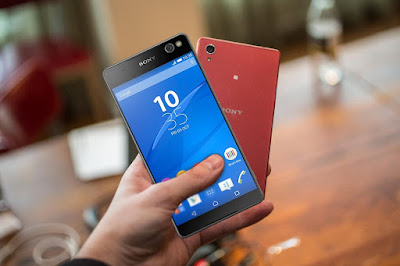
So far the latest build has only arrived on the E5603 Xperia M5 variant, but we expect it to hit all variants, including the Xperia M5 Dual shortly. We will upload the FTF firmware files shortly, but do let us know your impressions in the meantime.
Don’t worry we are going to share step by step guide to safely update your Xperia M5 to Android 6.0 firmware 30.2.A.0.100.
View my Flipboard Magazine.
÷ Prerequisites:
This Tutorial is only for Sony Xperia M5 E5603 variant.
*Disclaimer:
Android Custom ROM fix ® provide various Firmware Updates and Rooting process along with Custom ROM,Modes,file are all belong to their owners/developers. The autor of this site or the developers are not responsible, if you damage or brick your device.Do it on your own risk and follow the instruction properly.
* Important:
Backup important files stored on your device before proceeding with the steps below, so that in case something goes wrong you’ll have backup of all your important files.
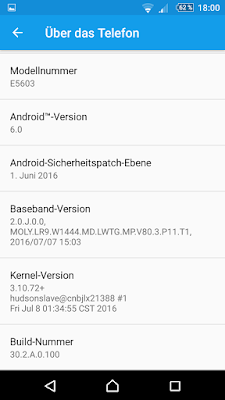
÷ How to Update Sony XPERIA M5 E5603 to Android 6.0 firmware 30.2.A.0.100
1- check your firmware version (if you already have the newest one, you do not need this tutorial)
2- Download and install latest Flashtool .
3- Download also latest Android 6.0 Marshmallow Firmware 30.2.A.0.100 for Sony XPERIA M5.
4- Paste the ftf file downloaded in step c) to folder „Firmware“ included in the XPERIA Flashtool.
5- Open the XPERIA Flashtool, click on flash and choose downloaded firmware, than click ok. Important - if you do not want to delete any data of your phone, just uncheck flashing userdata.sin file. All data will remain in your phone, but sometimes it can cause additional troubles. So it is better (and I recommend that) to do the backup of your personal data, than proceed with clean instalation and then restore your personal data.
6- Turn off your phone and when Flashtool shows pop up window, connect phone to PC with holding volume down button and than allow FSC (must)
7- After few minutes all is done and your phone gets the new firmware.
That’s it! Your XPERIA M5 should now have Marshmallow 6.0 firmware 30.2.A.0.100 on your phone! Go to Settings > About phone to verify.
For More Sony Xperia M5 Update Keep Checking Android Custom ROM Fix ™®
That’s all. We hope this guide serves you well. If there’s anything you’d like to be added/changed on this page, PLZ Use the comment box below to contribute more ideas & Suggestions .
Like this post? PLZ Hit the share buttons below to share this article with your friends on Facebook, Google + and Twitter.
Want the latest Updates Sign up for our newsletters!
PLZ Follow Us On Flipboard 4 More Latest Updates.
Best Regards.™
÷ Prerequisites:
This Tutorial is only for Sony Xperia M5 E5603 variant.
*Disclaimer:
Android Custom ROM fix ® provide various Firmware Updates and Rooting process along with Custom ROM,Modes,file are all belong to their owners/developers. The autor of this site or the developers are not responsible, if you damage or brick your device.Do it on your own risk and follow the instruction properly.
* Important:
Backup important files stored on your device before proceeding with the steps below, so that in case something goes wrong you’ll have backup of all your important files.
÷ How to Update Sony XPERIA M5 E5603 to Android 6.0 firmware 30.2.A.0.100
1- check your firmware version (if you already have the newest one, you do not need this tutorial)
2- Download and install latest Flashtool .
3- Download also latest Android 6.0 Marshmallow Firmware 30.2.A.0.100 for Sony XPERIA M5.
4- Paste the ftf file downloaded in step c) to folder „Firmware“ included in the XPERIA Flashtool.
5- Open the XPERIA Flashtool, click on flash and choose downloaded firmware, than click ok. Important - if you do not want to delete any data of your phone, just uncheck flashing userdata.sin file. All data will remain in your phone, but sometimes it can cause additional troubles. So it is better (and I recommend that) to do the backup of your personal data, than proceed with clean instalation and then restore your personal data.
6- Turn off your phone and when Flashtool shows pop up window, connect phone to PC with holding volume down button and than allow FSC (must)
7- After few minutes all is done and your phone gets the new firmware.
That’s it! Your XPERIA M5 should now have Marshmallow 6.0 firmware 30.2.A.0.100 on your phone! Go to Settings > About phone to verify.
For More Sony Xperia M5 Update Keep Checking Android Custom ROM Fix ™®
That’s all. We hope this guide serves you well. If there’s anything you’d like to be added/changed on this page, PLZ Use the comment box below to contribute more ideas & Suggestions .
Like this post? PLZ Hit the share buttons below to share this article with your friends on Facebook, Google + and Twitter.
Want the latest Updates Sign up for our newsletters!
PLZ Follow Us On Flipboard 4 More Latest Updates.
Best Regards.™
Available link for download
Monday, August 15, 2016
Cómo Intermitente Rom Sony Xperia Neo V MT11 Latest Firmware
Cómo Intermitente Rom Sony Xperia Neo V MT11 Latest Firmware

- ARCHIVOS NECESARIOS :
- Controlador USB PC Componion [For Windows] o [For Mac]
- Xperia FlashTool [DESCARGAR]
- Rom, Firmware Sony Xperia Neo V MT11i [DESCARGAR]
- Bateria por lo menos al 50%
- PASOS A SEGUIR :
- Cuando Flashtool haya acabado de descargar la imagen de Android, quedará guardada en C:/Flashtool/Firmwares como un archivo FTF
- Desconectar el cable USB Xperia Neo V MT11
- Apagar el celular
- Presionar y mantener el botón “volver atrás / volumen abajo” (en los terminales modernos de Sony el botón de bajar el volumen suele hacer ahora esta función, no obstante es mejor consultar para cada dispositivo la tecla específica)
- Conectar el cable USB al teléfono
- Soltar el botón de “volver atrás / volumen abajo” cuando la imagen que muestra qué botón pulsar desaparezca, El proceso de flasheo comenzará, y veremos esta pantalla
- Espera entonces a que Flashtool termine con el proceso. Después se te pedirá que vuelvas a encender tu teléfono. Si todo ha ido bien.
ya tendrías tu teléfono con un nuevo firmware actualizado y listo para funcionar Sony Xperia Neo V MT11. Si te animas a probar Flashtool.
Cómo utilizar FlashTool para actualizar el dispositivo Sony Xperia
Available link for download
Subscribe to:
Posts (Atom)