Thursday, October 6, 2016
How to Install Android 6 0 1 Marshmallow TurboROM on Nexus 4 Battery life Improve
How to Install Android 6 0 1 Marshmallow TurboROM on Nexus 4 Battery life Improve
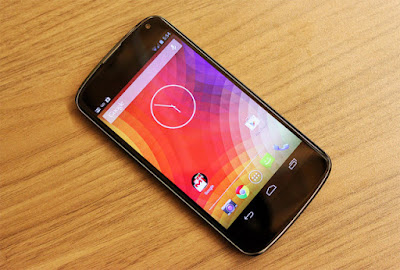
Nexus4 TurboROM custom ROM comes with tons of new features and is based on Android 6.0.1 Marshmallow. A quick list of the main features in TurboROM is given below and we are sure you’d love to use this on your Nexus 4:
* Turbo tweaks, which includes: *
– Battery bar
– Expanded desktop
– LCD density changer
– Double tap power button vibration toggle
– Double tap to sleep on lock screen
– Double tap to sleep on navigation bar
– Double tap to sleep on status bar
– Three finger swipe for screenshot
– Lock screen alpha changer (for both the bouncer and normal screen)
– Bottom left and right lock screen shortcut changer
– Middle lock screen shortcut changer
– The ability to change the color of the lock screen alarm, clock, and date
– The ability to change the font of the lock clock
– The ability to hide the lock screen alarm, clock, and date
– Lock screen weather
– Lock screen wallpaper changer
– Lock screen torch toggle
– Enable lock screen media art toggle
– Multi-window moved out of developer options into Turbo tweaks
– Memory bar in Recents
– Google search bar toggle
– Recents clear all button toggle and placement adjustments
– Immersive recents options
– SlimRecents
– SlimRecents app sidebar
– Slim’s navigation bar customization
– Auto-brightness toggle in the QS panel
– Show weather in QS header
– Brightness slider toggle in QS
– Quick pulldown in QS
– Time contextual headers in QS (including Poly HD)
– Advanced location tile toggle
– Enlarge the first row of QS tiles toggle
– The ability to set the number of QS columns (3, 4, or 5)
– The ability to arrange the QS tiles
– Status bar battery configuration
– Status bar brightness control
– Full status bar clock and date customization
– Blacklist status bar icons
– Breathing SMS, missed call, and voicemail
– Notification counter (shows the number of pending notifications in the app’s notification icon)
– Turbo ROM logo in the status bar toggle
– Full status bar weather customization
– AOKP custom system animation customization
– Power menu animation customization
– List view animation customization
– Hardware key customization
– Full volume rocker customization
– Advanced reboot
– Slim’s global menu customization....
Don’t worry we are going to share step by step guide to safely Install Android 6.0.1 Marshmallow TurboROM on your Nexus 4 .
÷ Prerequisites:
•This Android 6.0.1 TurboROM ROM tutorial is only for Nexus 4 (occam) and I am not sure if it will work on the other variants of the Nexus 4 on other carriers.
•Make sure your phone is rooted and has a custom recovery like ClockworkMod installed.
•Make a Nandroid backup of your previous phone set up before proceeding – for just in case anything goes wrong.
•Install the Google Apps package if you want the usual Google apps (Gmail, Maps, Play Store, Calendar etc.) on your phone.
*Disclaimer:
Android Custom ROM fix ® provide various Firmware Updates and Rooting process along with Custom ROM,Modes,file are all belong to their owners/developers. The autor of this site or the developers are not responsible, if you damage or brick your device.Do it on your own risk and follow the instruction properly.
* Important:
Backup important files stored on your device before proceeding with the steps below, so that in case something goes wrong you’ll have backup of all your important files.
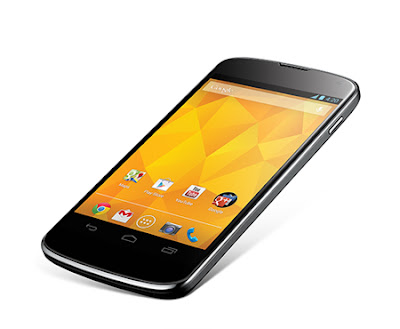
÷ How to Install Android 6.0.1 Marshmallow TurboROM on Nexus 4 [ Battery life Improve]
Step 1 – Download Android 6.0.1 TurboROM ROM and Google Apps for Nexus 4 on your PC, if you haven’t already.
Step 2 – Connect and mount your Nexus 4 USB memory on your computer using the USB cable.
Step 3 – Now copy/paste the downloaded Android 6.0.1 ROM zip and Google Apps zip files to your internal SD card. Make sure the files are in the SD card root (not in any folder).
Step 4 – Then turn OFF your phone and disconnect from the USB cable.
Step 5 – Now to get in the Bootloader Mode. Turn ON the phone while pressing and holding the Volume Up + Volume Down and Power buttons.
Step 6 – Follow the navigation instructions on the screen. Select BOOTLOADER and then go to RECOVERY.
Step 7 – Once you are in ClockworkMod Recovery, select perform a full data wipe by selecting “wipe data/factory reset”. Use the Power button to select everything while in the Recovery Mode.
Step 8 – Then, perform a cache wipe by selecting “wipe cache partition” .
Step 9 – Now this is optional, but it is recommended to perform a wipe of your dalvik cache as well. You will not get into boot loops or any other errors. From CWM recovery, go to ‘advanced’ and then select “wipe dalvik cache”.
Step 10 – Then go back to the main recovery screen and select “install zip from SD card”.
Step 11 – Now select “choose zip from sdcard”. Using your volume keys, navigate to the Android 6.0.1 ROM zip file that you copied to your SD card and select it using the Power button. Confirm the installation on the next screen and the installation procedure should start now.
Google Apps: Repeat the above step for the Gapps zip file as well and install it on your phone.
Step 12 – After the installation completes, go to “+++++Go Back+++++” and reboot the phone by selecting “reboot system now” from the recovery menu .
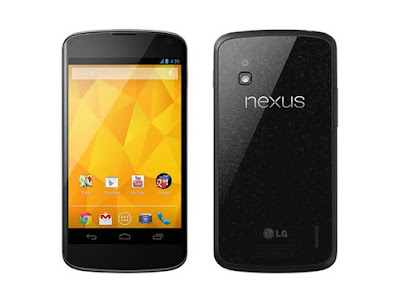
Your Nexus 4 will boot now and it might take about 5 minutes to boot on your first time. So, please wait.
That’s it! Your Nexus 4 should now have Android 6.0.1 TurboROM Marshmallow custom ROM installed on your phone! Go to Settings > About phone to verify.
For More Nexus 4 Updates Keep Checking Android Custom ROM Fix ™©
That’s all. We hope this guide serves you well. If there’s anything you’d like to be added/changed on this page, PLZ Use the comment box below to contribute more ideas & Suggestions .
Like this post? PLZ Hit the share buttons below to share this article with your friends on Facebook, Google + and Twitter.
Want the latest Updates Sign up for our newsletters!
PLZ Follow Us On Flipboard 4 More Latest Updates.
Best Regards.™
Available link for download

Friday, September 16, 2016
Inkwire is a new app that could improve the remote support experience
Inkwire is a new app that could improve the remote support experience

Update, July 22: Duttas Inkwire is now available as a beta. To try it out you will need to join a Google Plus community and then download it from the Play Store. You can get started right here.
Original post, July 15: You may recognize the name Koushik Dutta – hes the developer behind Vysor, an app that lets you control your Android smartphone on a desktop, as well as other popular Android apps. And hes back again, this time with an app called Inkwire.
Vysor and Inkwire do similar tasks, but are different in significant ways. Before Vysor, apps that let you remotely access and control your smartphone required rooting, or the frame rates simply dropped to a point where even simple tasks like typing became torture.
Vysor, however, was one of the first to offer an intuitive and responsive experience. All you had to do was launch the Vysor extension on Chrome, connect and turn on USB debugging on your device, and you could control your phone with your mouse and keyboard. Simple as that.
Inkwire is set to give you the same easy method of remote access, except you dont need a desktop or ADB. According to Koush, Inkwire is "just plain old Android to Android screen sharing, without the cords." The app generates a code that is shared with another user to grant them access to your screen.
Since ADB is not required, you wont be able to control the remote users smartphone directly; however, Inkwire will let users draw over the shared screens to show where to touch. On top of that, Inkwire supports voice chat, which will no doubt facilitate communication between users.
If Inkwire is able to provide a smooth and intuitive but also secure experience, it may shift the paradigm of troubleshooting your Android device. No longer will you have to walk around your neighborhood, looking for a phone repair shop, as many things could be done virtually.
Read more: Best remote access apps for Android
Although we dont know the official release date for the app just yet, Koush promises that the beta link is coming soon to this community page for Inkwire.
Do you think Inkwire would be useful? Let us know in the comments below!
from Android Authority http://ift.tt/29MV1Qx
via IFTTT
Available link for download